


Google Docs Rolling Out Customizable Table of Contents
The new Google Docs tabs table of contents update is quietly changing how long documents work. If you rely on collapsible headings in Google Docs, this feature matters.
It adds more control, better structure, and a cleaner way to navigate complex files. But it also comes with limits you should understand before you depend on it for serious work.
I’ve tested the updated table of contents in client reports, long blog drafts, and shared team documents. Some parts feel like a big upgrade. Others still need polish. Here’s what you need to know before you reorganize your workflow.
What Changed in the Table of Contents Google Docs Feature?
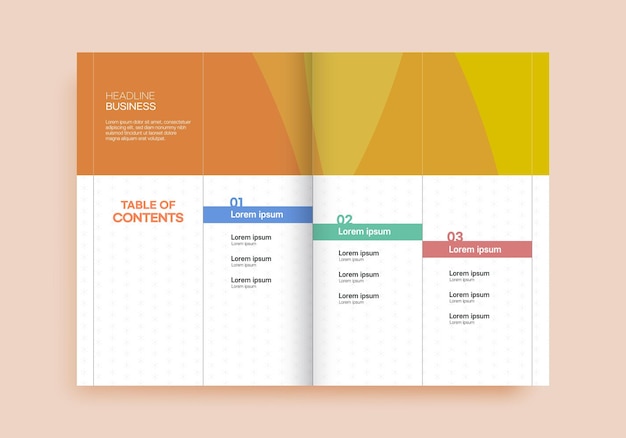
The Table of contents Google Docs tool used to be simple. You inserted it. It auto-pulled headings. Done.
Read Also: How to Sync Samsung Notes to OneNote Fast?
Now, Google is rolling out customizable options tied to document tabs and collapsible heading behavior. This helps users who manage:
-
Long research documents
-
Ebooks and guides
-
Team SOPs
-
Multi-section reports
-
Shared client drafts
The biggest practical change? Better structure and clearer navigation when you use heading styles correctly.
How to Automatically Create a Table of Contents in Google Docs
Many users still search: How to automatically create a table of contents in Google Docs? Here’s the simple method:
-
Apply heading styles (Heading 1, 2, 3) to section titles.
-
Click where you want the TOC.
-
Go to Insert → Table of contents.
-
Choose link style or page-number style.
Google pulls headings instantly.
Pro tip from real use: Do not manually bold text instead of using heading styles. The TOC will ignore it. I’ve seen teams waste hours wondering why sections don’t appear.
Collapsible Headings Google Docs: Why Users Actually Care?
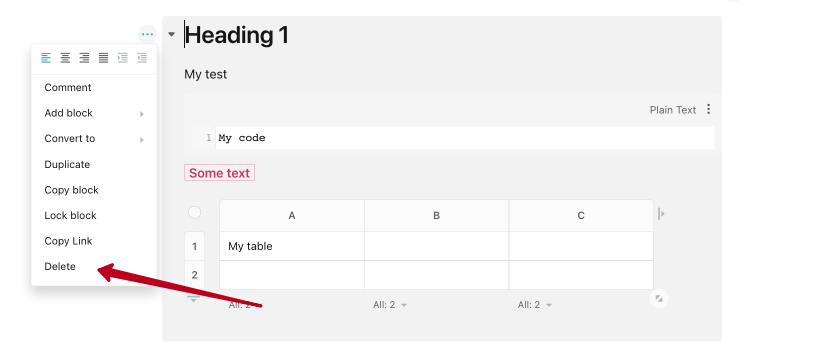
Most people searching for collapsible headings Google Docs want one thing: control. When you work inside long documents, scrolling wastes time. Collapsible headings allow you to:
-
Collapse sections you don’t need
-
Focus on one chapter
-
Reduce visual clutter
-
Share cleaner drafts with clients
In large content projects (3,000+ words), collapsible headings improve focus. I personally use them for editorial reviews. They reduce cognitive overload. However, collapsible headings only work properly if:
-
You use structured heading styles
-
Your document is not overloaded with inconsistent formatting
-
You avoid manually resizing headings
Structure equals function.
How to Add Table of Contents in Google Docs on the Side?
Another common question: How to add table of contents in Google Docs on the side? Technically, Google Docs does not create a permanent fixed sidebar TOC like some word processors. But you can:
You Must Also Like: Google Docs Checklists Can Now Be Assigned and Appear in Google Tasks
-
Use the Document Outline panel (View → Show outline)
-
Use collapsible headings for quick navigation
-
Insert a linked TOC at the top for structured navigation
The Document Outline acts like a live side navigation menu. In my experience, it’s faster than scrolling through a traditional TOC. Limitations to note:
-
It depends fully on correct heading structure.
-
It cannot be heavily customized visually.
-
It may feel basic compared to advanced writing software.
Still, for most users, it’s enough.
Real-World Pros of the Google Docs Tabs Table of Contents
After testing it in active projects, here’s what works well:
1. Cleaner Navigation in Long Documents
If you write guides, academic papers, or long content, navigation improves dramatically. Instead of scrolling endlessly, you jump instantly to sections.
2. Better Collaboration
Clients often comment on specific sections. With collapsible headings and a structured TOC, feedback becomes precise. I’ve noticed fewer “Where is this section?” messages.
3. Automatic Updates
When you add new he adings, the table updates. You don’t rebuild structure manually. That saves time, especially for frequently edited documents.
4. More Professional Formatting
A structured document looks serious. It signals organization and clarity. That matters for reports and proposals.
Honest Cons You Should Know
No tool is perfect. Here are the real drawbacks.
1. Limited Visual Customization
You cannot deeply style the TOC design. Fonts and layout options remain basic. If you want design-heavy formatting, Google Docs is not ideal.
2. Structure Dependency
If your headings are inconsistent, the TOC breaks. Many users mix bold text, font resizing, and heading styles. That creates chaos. You must commit to structured formatting from the start.
3. No Advanced Collapsible Custom Controls
You cannot create complex nested collapsible systems like in specialized writing tools. For extremely technical documents, the functionality may feel limited.
Who Should Use This Feature?
Best for:
-
Bloggers drafting long articles
-
Students writing research papers
-
Teams building SOPs
-
Content marketers managing structured drafts
-
Writers working on ebooks
Not ideal for:
-
Designers needing heavy layout control
-
Highly complex technical documentation systems
-
Users who refuse to use heading styles properly
If you work in structured writing, this tool fits well. If you want design-first flexibility, you may feel restricted.
Practical Advice: How to Avoid Formatting Headaches
If you want collapsible headings and a clean TOC that works every time, follow this system:
Use Only Official Heading Styles
Never manually resize or bold section titles. Always use:
-
Heading 1 for main sections
-
Heading 2 for sub-sections
-
Heading 3 for deeper levels
Consistency is everything.
Build Structure Before Writing 5,000 Words
I now outline documents first. I apply headings first. Then I write. This prevents massive restructuring later.
Use the Outline Panel Daily
Keep View → Show Outline enabled.
It acts like your structural checklist.
Common User Questions Answered Clearly
Does the Google Docs tabs table of contents update automatically?
Yes. When you add or edit headings, you can refresh the TOC with one click.
Can you customize collapsible headings in Google Docs?
You can collapse and expand them. But design control is limited. Function over style.
Is this feature good for long-form content?
Yes. Especially for 1,500+ word documents. It improves navigation and editing speed.
Can beginners use it easily?
Yes, but only if they understand heading styles. Without that knowledge, it becomes confusing.
Why This Update Matters More Than It Looks?
At first glance, it feels small. But structure changes productivity. When documents become easier to navigate:
-
Editing speeds up
-
Collaboration improves
-
Reader experience gets smoother
-
Errors reduce
In content workflows, small structural tools create large efficiency gains.
Final Practical Takeaway
If you are searching for collapsible headings Google Docs support, the new table of contents improvements are worth using. But here’s the honest truth:
The tool only works as well as your structure. If you commit to clean heading use, you’ll benefit. If you rely on random formatting, it will frustrate you.
For most users creating structured documents, the Google Docs tabs table of contents update is a smart, practical improvement. Not flashy. Not revolutionary. But genuinely useful. And in productivity tools, useful always wins.