


Does Google Meeting Have a Time Limit?
If you’ve ever been in the middle of an important Google Meet call and wondered, “Is this thing about to cut us off?”—you are not alone. I’ve been there too. Sometimes it’s a casual catch-up that runs long. At other times, a client meeting occurs where timing is crucial.
In this article, I am sharing good information about Does Google Meet Have a Time Limit?. Yes, Google Meet does have time limits—but they depend on the type of account you’re using.
And the rules aren’t always as obvious as they should be. Below is a practical, no-fluff explanation based on real use, not marketing blurbs.
Does Google Meet Have a Time Limit?
Short Answer: Sometimes.
Google Meet’s time limits depend on whether you’re using a free Google account or a paid Workspace plan. The difference is big, and it affects how reliable Meet is for long conversations.
Read Also: How to Make a Google Spreadsheet Form?
Google Meet Time Limit for Free Users
If you’re using a free Google account, here’s what to expect:
-
1-on-1 meetings: Up to 24 hours
-
Group meetings (3+ people): 60 minutes
When the 60-minute mark arrives, the meeting ends automatically. No warning countdown. No grace period. Everyone gets dropped.
This is usually fine for quick team syncs or family calls. But if you’re running workshops, interviews, or classes, that limit can feel tight fast. I’ve seen people plan a 90-minute meeting and lose momentum because they forgot about the cutoff. It’s not ideal.
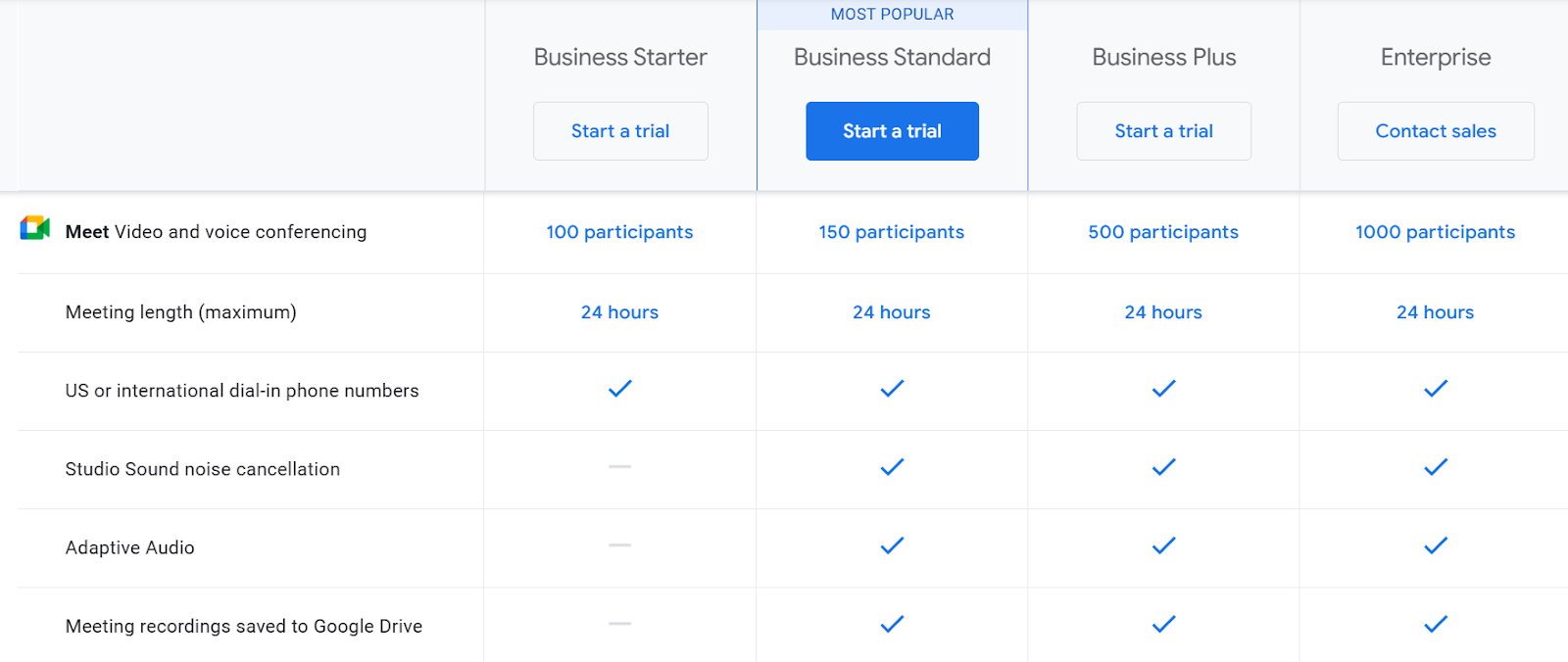
Google Meet Time Limit for Paid Plans
With a Google Workspace subscription, the limits are much more generous:
-
Most plans allow meetings up to 24 hours
-
Includes Business Starter, Business Standard, Business Plus, and Enterprise plans
For businesses and educators, this makes Google Meet far more dependable. You can host long sessions without worrying that someone will kick you out mid-sentence.
Why Google Uses Time Limits (And Why It’s Not Random)?
Google didn’t add time limits to be annoying. They’re meant to:
-
Encourage upgrades for professional use
-
Prevent abuse and server overload
-
Separate casual use from business needs
From a practical standpoint, it makes sense. If you rely on video meetings daily, the paid plans pay for themselves quickly.
What Is Companion Mode in Google Meet?
This is one of Google Meet’s most useful — and misunderstood — features.
Companion mode lets you join the same meeting from a second device without using its camera or microphone. Think of it as a support screen. Here’s how people actually use it:
-
Joining from a laptop for video, while using a tablet to present slides
-
Sharing content without audio feedback
-
Collaborating in a meeting room with many screens
If you’ve ever struggled with echo or screen-sharing chaos, companion mode fixes a lot of that.
What companion mode doesn’t do: It doesn’t extend time limits. The meeting still follows the same rules based on the host’s account.
Google Meet Screen Share: How It Works in Real Life
Google Meet screen share is simple, but there are small details that matter. You can share:
-
An entire screen
-
A specific window
-
A browser tab (best for video and sound)
Browser tab sharing works best, especially for presentations and videos. It uses less processing power and keeps audio clean.
You Must Also Like: How to Merge Cells in Google Sheets Without Losing Data?
One thing people miss: if you switch tabs while sharing your entire screen, everyone sees it. I’ve watched more than one person reveal private messages without realizing it this way.
Pro tip: If you are presenting slides, open them in a single tab and share that tab only.
Google Meet vs Zoom: Which Handles Time Limits Better?
This question comes up a lot, especially for teams choosing between platforms.
Google Meet vs Zoom (Time Limit Comparison)
Google Meet (Free):
-
60 minutes for group meetings
-
24 hours for one-on-one
Zoom (Free):
-
40 minutes for group meetings
-
Unlimited one-on-one
Google Meet provides a longer duration than Zoom for users on free plans. That’s one reason many people prefer it for casual group calls.
Yet, Zoom offers more advanced host controls and breakout rooms even at lower tiers. Google Meet wins on simplicity and browser-based access.
In real-world use, the choice usually depends on what you value more:
-
Fewer interruptions → Google Meet
-
Advanced meeting tools → Zoom
Practical Tips to Avoid Google Meet Time Limit Issues
If you’re sticking with the free version, a little planning goes a long way.
1. Schedule Meetings Smarter
If your meeting might run long, plan a short break at the 50-minute mark. Rejoining takes less than a minute.
2. Use One-on-One When Possible
If it’s two people, you get up to 24 hours. Even adding a third person changes everything.
3. Let a Paid User Host
If someone on your team has a Workspace plan, have them start the meeting. The time limit follows the host.
4. Save Key Points Early
Don’t wait until the last five minutes to cover important decisions. Time limits don’t care how good the discussion is.
Common Misconceptions About Google Meet Time Limits
Let’s clear up a few things people often get wrong.
“Companion mode extends meeting time.” It doesn’t. Same meeting, same rules.
“Screen sharing affects time limits.” Nope. You can share your screen for one minute or fifty — the limit stays the same.
“Google Meet warns you before ending.” Not possible to remove the adverb. Sometimes there’s a short notice, sometimes none at all.
“Recording stops the timer.” Recording has zero effect on time limits.
FAQs About Google Meet Time Limits
1. Does Google Meet automatically end meetings?
Yes. Once the time limit is reached, everyone closes the meeting.
2. Can I restart a Google Meet after the time limit?
Absolutely. You can start a new meeting immediately using the same link or a new one.
3. Is there a way to remove the time limit for free users?
No official way. Upgrading to Google Workspace is the only permanent solution.
4. Does Google Meet time limit apply to classes?
Yes, unless the school uses an Education Workspace plan, which usually allows longer sessions.
5. Is Google Meet better than Zoom for long meetings?
With a paid plan, yes. On free plans, Google Meet still offers more time for group calls.
Final Thoughts
In this paragraph, I am talking about the does google meeting have a time limit? For most casual users, Google Meet’s time limits are reasonable. Group calls usually take about an hour.
In contrast, one-on-one meetings can go on for as long as needed. If you rely on long talks, training sessions, or client calls, the free plan will feel limited soon. From personal experience, Google Meet shines when you want:
-
Fast access
-
Clean interface
-
Reliable screen sharing
-
Fewer downloads and logins
If meetings are central to your work, upgrading removes friction without delay. If not, knowing the limits helps you work around them without stress. That awareness alone prevents more meetings than any feature ever will.