


How to Fix Common Errors When Using Google Takeout Transfer for School Accounts?
I helped my cousin transfer her school data last week. She graduated in May. Her college gives alumni only 30 days before deleting everything. She panicked. I sat with her for three hours. We hit every error possible. The "administrator" block. The storage full error. The duplicate file mess.
Using Google Takeout Transfer sounds simple. Google says "just click and go." That is a lie. School accounts have extra locks. This guide walks you through the real errors I saw. And the fixes that actually worked.
Error 1: "Transfer Your Content is only available to authorized G Suite for Education Accounts"
This is the most common error you will see. The screen literally says: "Transfer Your Content is only available to authorized G Suite for Education Accounts. Please contact your administrator, or sign in with another Google Account".
I saw this error twice. Both times it was the same stupid mistake.
The fix: You are logged into multiple Google accounts in the same browser. Your school account. Your personal Gmail. Maybe a work account. The Google Takeout transfer tool gets confused.
Log out of every single Google account. Close all browser tabs. Then open an incognito or private browsing window. Log in only to your school account. Go to takeout.google.com/transfer. It will work.
Do not try this in your normal browser with multiple profiles. It fails every time.
What if it still does not work? Then your school administrator has not turned on the permission. Go to Error 2.
Error 2: Your Admin Blocked Access (And You Cannot Fix It Yourself)
Here is the hard truth. Your school controls whether you can use using Google Takeout Transfer at all. The administrator must check a box that says "Allow users in this organizational unit to access Transfer your content".
I called my cousin's IT department. They had to enable it manually. Took them two days to respond.
How to check if this is your problem: Try the incognito window fix from Error 1. If the same message appears, your admin has not enabled the feature.
What to do: Email your school's IT helpdesk. Use this exact message:
"I am trying to use Google Takeout Transfer to copy my Drive and Gmail before my account closes. The tool says 'only available to authorized G Suite for Education Accounts.' Can you please enable 'Additional transfer permissions' for my account or my graduating class? Here is Google's admin guide: https://support.google.com/a/answer/12477959"
Some schools only enable this for graduating students during specific months. Others never enable it. If your school refuses, you have to use regular Google Takeout (download to your computer) instead of direct transfer. That is slower. But it works.
Error 3: "Transfer Failed - Not Enough Storage"
This error hurts. You start the transfer. It runs for hours. Maybe days. Then it fails. No warning. No partial transfer. Just failure.
The Google Takeout transfer tool does not check your destination account's storage before starting. The free personal Gmail accounts only give you 15GB. Your school account might have 50GB or 100GB. The tool tries to copy everything. When it hits the 15GB limit, it crashes.
How to check before you start: Log into your personal Google account. Go to drive.google.com/settings/storage. Look at the number next to "Used." That is your free space.
Now log into your school account. Go to the same page. That is how much data you are trying to move.
If your school data is 20GB and your personal account has 15GB free, you need more space.
The fix: Buy more storage from Google One. The 100GB plan costs about 2permonth.Or2permonth.Or20 for the whole year. Cancel after the transfer completes. That is cheaper than losing your files.
Alternative fix: Do not transfer everything. Pick only the important folders. Go to takeout.google.com/transfer. Before clicking "Start Transfer," uncheck the boxes for data you do not need. Old emails from 2022. Large video files. Delete them from your school account first, then transfer.
Warning about failed transfers: If your transfer fails halfway, your personal account might have duplicate files. Google does not clean up the partial copy automatically. You have to delete everything the transfer already copied, free up space, then restart from zero.
Error 4: The Transfer Takes Forever (Days, Not Hours)
My cousin's transfer took six days. SIX DAYS. She checked every morning. Nothing. Then on day six, she got an email saying it was done.
This is normal. Google says the process "can take up to a week". You cannot see progress. You cannot speed it up. You cannot stop it once it starts.
What you can do: Start your transfer at least two weeks before your school account closes. Do not wait until the last day. The tool will not tell you "hey this will take 8 days." It just runs silently.
How to check if it is still working: You cannot see progress, but you can see if it failed. Go back to takeout.google.com/transfer while logged into your school account. If it says "Transfer in progress," wait. If it says nothing or shows an error, it failed .
Pro tip: Transfer Gmail and Drive separately. One request for email. Another request for documents. They run independently. If one fails, the other might succeed.
Error 5: Shared Files Did Not Transfer (Missing Data)
This one confused me. My cousin had a shared folder from her class project. She did not own it. Her professor owned it. The transfer copied nothing from that folder.
Why this happens: The Google Takeout transfer tool only copies files YOU own. It does not copy files shared with you. It does not copy files in "Shared with me".
The fix: Before you graduate, ask the owner of any important shared file to transfer ownership to you. Or manually download those files to your computer. Or make a copy of the shared file (File > Make a copy) while logged into your school account. Then transfer the copy. The copy is now owned by you.
Do this early. Owners forget. Professors go on vacation. Department heads do not respond to email. Do not wait.
Error 6: Folder Structures Got Messed Up
Your original school account might have beautiful folders. Year-wise. Course-wise. Project-wise. After transfer, some folders appear flat. Some files go missing from folders.
What the tool preserves: The transfer keeps your folder structures and email labels. That part works.
What the tool breaks: Sharing permissions disappear completely. Anyone you shared a folder with in your school account loses access. You have to re-share everything from your personal account.
Read Also: Does Google Meeting Have a Time Limit?
What you lose: Files that were in "Shared with me" do not come at all. Neither do Google Forms or Google Sites. Those export as flattened PDFs, not working forms.
My advice? Do not trust the folder structure 100%. Before your school account closes, manually check the most important 5-10 files. Make sure they landed where you expect.
What Google Takeout Transfer Actually Copies (And What It Ignores)?
Let me give you the honest breakdown based on Google's own documentation and my testing.
Yes, it copies:
-
Gmail messages (all of them, including sent mail)
-
Google Drive files you own (Docs, Sheets, Slides, PDFs, images)
-
Folder structures and email labels (mostly)
No, it does NOT copy:
-
Google Photos (use regular Google Takeout for this)
-
Contacts
-
Calendar events
-
Tasks
-
Google Chat history
-
YouTube videos or playlists
-
Files shared with you (you do not own them)
-
Google Forms and Sites (they become broken PDFs)
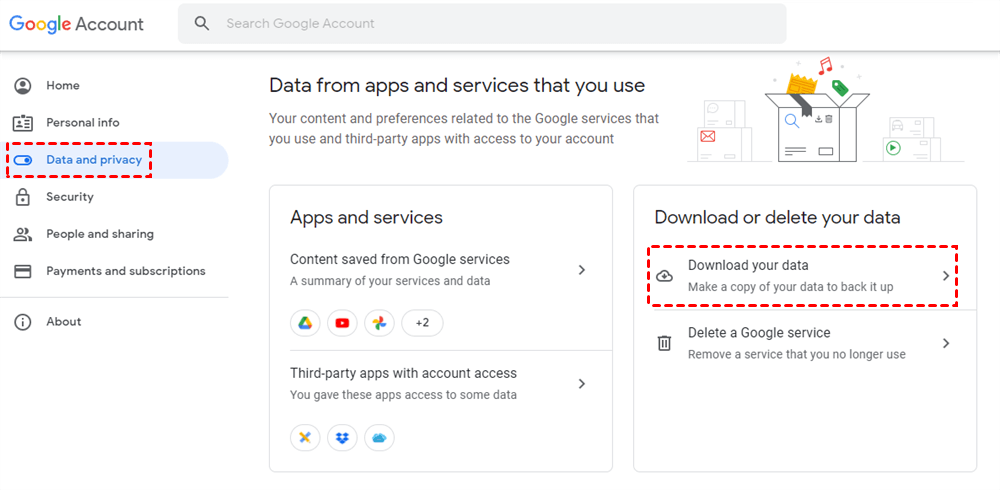
Read that list carefully. If you have photos in your school Google Photos account, you need to use regular Google Takeout (takeout.google.com) not the transfer tool. Download them to your computer. Then upload to your personal account.
Step-by-Step: How to Start Your Transfer Correctly?
Here is the exact process that finally worked for my cousin. Follow this exactly.
Step 1: Log out of ALL Google accounts. Every single one. Close your browser.
Step 2: Open an incognito or private window. Chrome calls it Incognito. Firefox calls it Private. Edge calls it InPrivate.
Step 3: Log into your SCHOOL Google account first. No other accounts.
Step 4: Go to takeout.google.com/transfer.
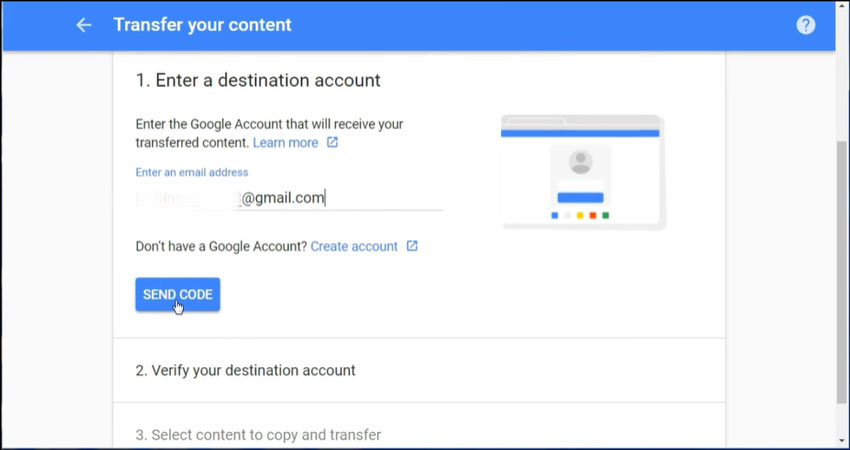
Step 5: Enter your personal Gmail address. Click Send Code.
Step 6: Open another incognito window (or use your phone). Log into your personal Gmail account. Find the verification email from Google.
Step 7: Copy the 8-digit code from that email.
Step 8: Go back to the first incognito window (school account). Paste the code. Click Verify.
Step 9: Choose what to transfer. Uncheck anything you do not need. Less data means faster transfer and lower chance of storage failure.
Step 10: Click Start Transfer. Then wait. Check back in 2-3 days. Do not restart it.
Step 11: When complete, Google sends an email to your personal account from noreply-account-migration@google.com. Check your spam folder if you do not see it.
Deadlines You Cannot Miss
Schools are deleting alumni data aggressively. Google changed their Workspace for Education storage policies. Many colleges now give you only 30-90 days after graduation before deleting everything.
Check your school's specific deadline. For some, Google Drive access ends on December 1 following graduation. For others, it is June 30. For many, it is 30 days after your last enrolled semester.
You Must Also Like: How to Make a Google Spreadsheet Form?
Start your transfer at least 30 days before that deadline. The transfer itself takes up to a week. Then you need time to verify everything arrived. Then more time to contact IT if something failed.
Do not wait until the week before. I have seen too many graduates lose everything because they thought "one week is enough."
Who This Tool Is For (And Who Should Use Something Else)?
Best for: Students with less than 15GB of Drive and Gmail data. People who want everything moved directly without downloading to a computer first. Graduates whose schools have enabled the admin permission.
Not best for: Anyone with Google Photos they want to keep (use regular Takeout instead). Students with more than 15GB of data (buy Google One storage first). People in a rush (the transfer takes days). Anyone whose school disabled the feature (you have no choice but to use regular Takeout).
Wait if: Your graduation is more than three months away. Your school has not announced their alumni data policy yet. You have not cleaned up old files and emails.