


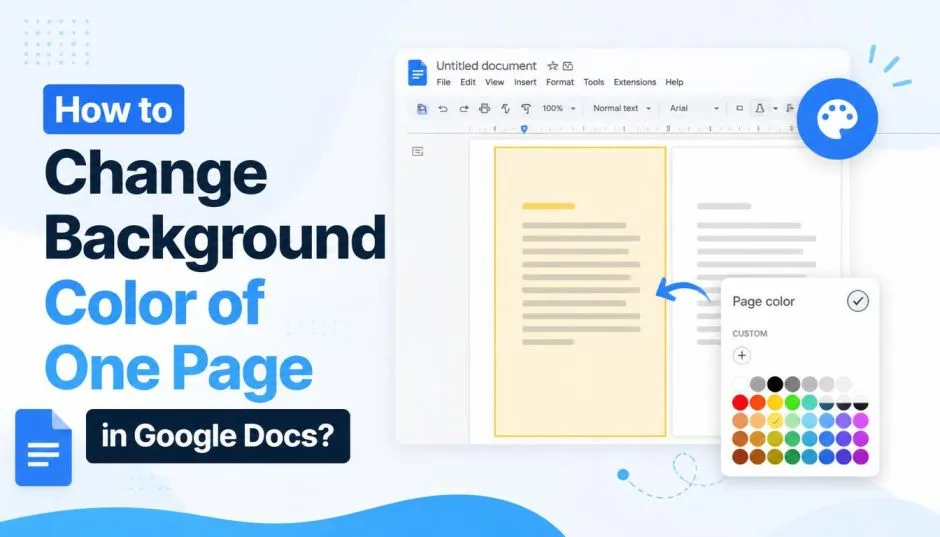
How to Change Background Color of One Page in Google Docs?
I ran into this problem last week. I was putting together a proposal for a client. I wanted the cover page to stand out. A dark background. White text. Professional. The rest of the document needed to stay plain white for printing. Simple request, right?
Google Docs does not make it easy. In fact, it does not let you do it at all. Not directly. I spent an hour searching through menus and trying different tricks. Let me save you the time.
The Official Way Changes Everything
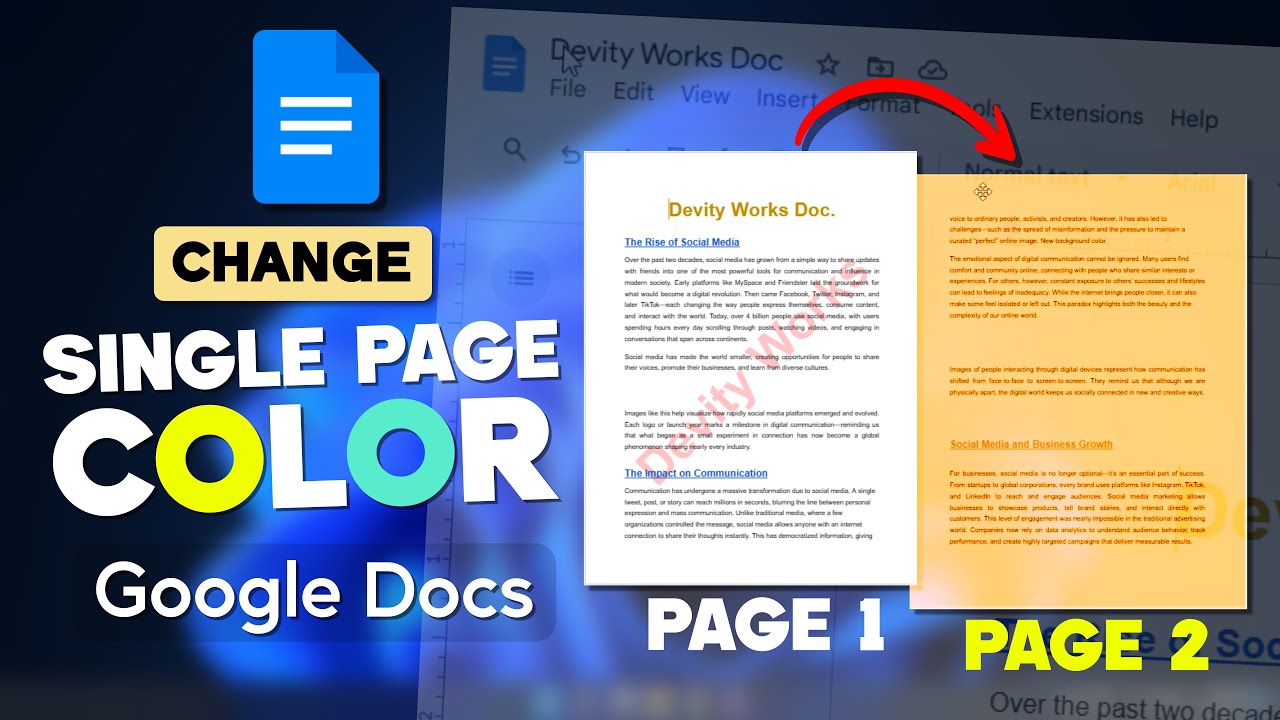
Here is the standard way to change the background color on Google Docs for the entire document. Open your document. Click File in the top menu. Select Page setup. Look for Page color. Pick a color from the palette or use a custom hex code.
That sounds simple. But here is the catch. Whatever color you choose applies to the entire document. Every single page. No exceptions.
Read Also: How to Turn Off Pageless Mode in Google Docs Mobile?
Google Docs does not have a native feature for changing individual page colors. A Google expert confirmed this on the official support forums. The page color is a document-level setting, not a page-level one.
If you need different colors for different sections, you are out of luck with the built-in tools. Split your content into separate documents. That is the only official suggestion.
Why Google Docs Restricts This?
This design choice makes sense for most users. Most people want a consistent background across their entire document. But for those of us who need that one standout page, it is frustrating.
The limitation extends to other formatting options as well. You cannot have different headers or footers on different pages either. Google Docs offers section breaks for headers and footers but not for page colors. That tells you something about how the platform works.
Workarounds That Actually Work
I tested three methods that get the job done. None are perfect. But they work.
Method One: The Table Trick
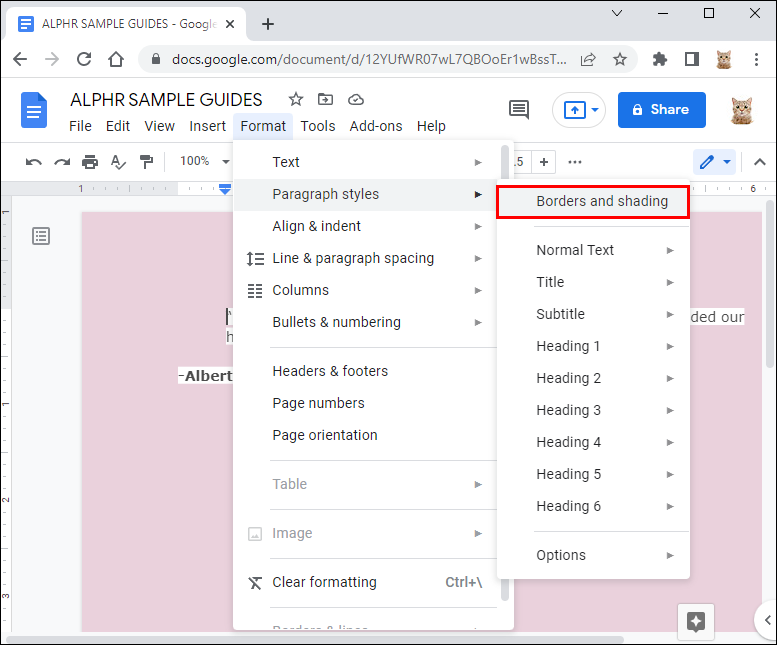
Insert a 1x1 table. Resize it to cover the entire page. Set the table background to your desired color. Put your text inside the table.
You Must Also Like: Google Docs Rolling Out Customizable Table of Contents
This gives you a colored "page" inside your document. The rest of your pages stay white. I used this for my proposal cover. It looked clean.
How to do it step by step:
-
Place your cursor at the top of the page where you want the color.
-
Go to Insert > Table > 1x1.
-
Drag the table borders to fill the entire page.
-
Right-click the table and select Table properties.
-
Under Color, choose Cell background color.
-
Pick your color.
-
Insert your text inside the table.
Pros: Simple. Fast. No external tools needed. Works for single pages.
Cons: Tables can mess with text flow. You might need to adjust margins and padding. It works best for single pages with minimal text. Bullet points and lists inside tables can be tricky.
Method Two: The Image Background
Insert a colored image. Resize it to fill the page. Set the image to "Behind text". Write your content on top .
This gives you complete control over the color. You can use gradients, patterns, or even photos. I tried this for a brochure page. It looked fantastic.
How to do it step by step:
-
Create a colored image in any image editor. Canva works great for this. So does Microsoft Paint.
-
Save the image as a PNG or JPEG.
-
In Google Docs, go to Insert > Image > Upload from computer.
-
Select your image.
-
Resize it to fill the page.
-
Right-click the image and select Image options.
-
Under Text wrapping, choose Behind text.
-
Type your content on top of the image.
Pros: Works for any color. Works for gradients. Works for photos and patterns. Looks professional.
Cons: Increases file size. Text placement takes extra tweaking. It is a bit fiddly but effective. The image does not scale perfectly with page resizing.
Method Three: Use Google Slides Instead
If your document has multiple pages with different backgrounds, consider Google Slides. Slides let you change the background of each slide individually .
How to do it:
-
Create a new Google Slides presentation.
-
Right-click on the slide you want to change.
-
Select Change background.
-
Pick a color or upload an image.
-
Each slide can have a different background.
Pros: Native feature. Works perfectly. No workarounds needed.
Cons: Slides are not the same as a document. Formatting is different. Text wrapping and page layout work differently. If you need a document with proper page breaks and formatting, Slides is not the best choice.
Mobile and Other Limitations
The mobile app has fewer options. You can change the background color on Google Docs through Page setup in the three-dot menu. Only preset colors are available. No custom hex codes.
How to do it on mobile:
-
Open your document in the Google Docs app.
-
Tap the three-dot menu in the top-right corner.
-
Select Page setup.
-
Tap Page color.
-
Choose from the preset colors.
Dark mode is separate. It changes the app theme, not the document background. Your collaborators cannot see your dark mode settings. They only affect your view.
What Microsoft Word Does Better?
Microsoft Word handles this easily. You can change the background color of individual pages. Word has section breaks. You can apply formatting to specific sections. That includes page color.
How Word does it:
-
Insert a section break before and after the page.
-
Go to Design > Page Color.
-
Click Fill Effects.
-
The color applies only to that section.
Google Docs does not have section break formatting for page colors. That is why users struggle with can't change page color Google Docs issues.
Third-Party Add-Ons
I looked for add-ons that could help. There are none that solve this specific problem. Google Docs add-ons are limited. None offer per-page color formatting.
Some add-ons help with templates. They let you create a custom design. But they still rely on the same global page color setting.
My Honest Take
Google Docs is not built for single-page color changes. The table and image workarounds are fine for occasional use. But if you need this feature often, use a different tool. Google Slides. Canva. Microsoft Word.
The workarounds take extra time. They require formatting adjustments. They are not elegant. But they get the job done when you need that one standout page.
Final Thoughts
If you want to change the background color on Google Docs, you have options. Just know the limits. The table trick works. The image trick works. Google Slides works better for multi-page presentations.
For my proposal, I used the table trick. It took two minutes. My client loved the design. That is what matters.
Google Docs is great for collaboration. It is great for shared editing. It is not great for advanced page design. Keep that in mind. Use the right tool for the job.