


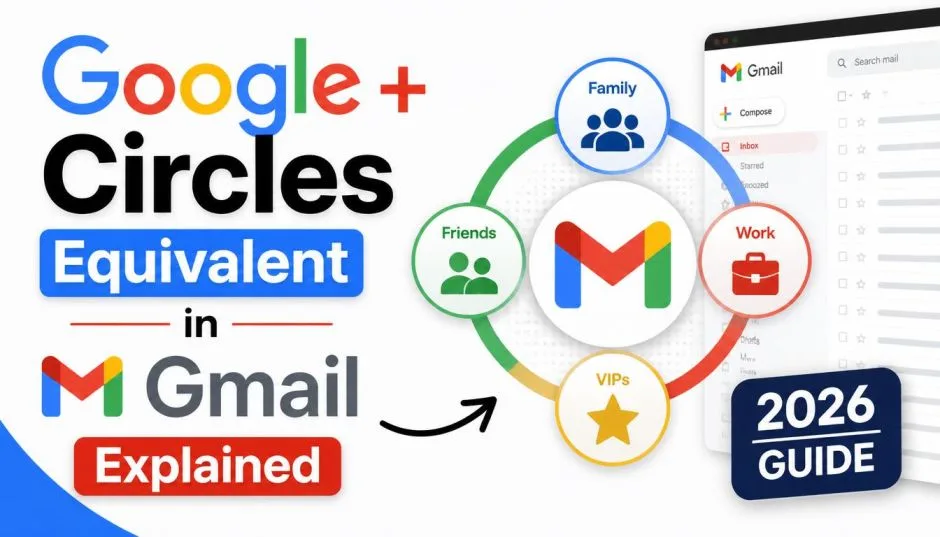
The Google Plus Circles Equivalent in Gmail Explained (2026 Guide)
Do you remember Google Plus? It was Google's attempt at a social network. It had a cool feature called Circles. You could put your friends in different groups. You could share things with just one circle. It was a great way to control your privacy.
Then Google Plus shut down. It happened in 2019. It was a sad day for its fans. It was a big loss for many people. They lost a great way to organize their contacts. They lost a unique social network.
Many people are still asking the same question. What is the Google Plus Circles equivalent in Gmail? Is there anything like it? The answer is not a simple yes or no. It is more complicated than that.
Google does not have a direct replacement. They did not copy the feature exactly. But they do have similar tools. You just have to know where to look. This guide will explain everything. It will show you how to organize your contacts. It will show you how to control your privacy.
What Were Google Plus Circles?
Let us take a trip down memory lane. Google Plus was launched in 2011. It was Google's answer to Facebook. It was a social network. It was designed around the idea of "Circles."
Read Also: How to Automate Google Chat Spaces Using the Gemini API?
A Circle was a group of people. You could create a circle for your family. You could create one for your coworkers. You could create one for your high school friends.
You could share a post with just one circle. You could also share it with the public. It was a powerful privacy tool. It let you control who saw what.
It was a very simple concept. It was also very effective. It put the user in control. It was one of the best features of Google Plus. It was the main reason people used it.
The Shutdown: What Happened to Google Plus?
Google Plus had many fans. It also had many critics. It never became as popular as Facebook. It had a data breach. It was a major security issue. Google decided to shut it down.
The consumer version closed in April 2019. The business version, Google Plus for G Suite, closed a little later. It was the end of an era. It was the end of a unique social network.
Is Google Plus Still Active?
The answer is no. The consumer version is gone. You cannot log in. You cannot post. You cannot see your old posts. It is completely dead. The answer to the question "Is Google Plus still active" is a clear no.
The only remnant is Google Currents. It was the business version. It is a tool for companies. It is not a social network for regular people. It is a different product. It is for internal communication. It is not a replacement for Circles.
The Gmail Feature That Replaced It
So, what did replace it? There is no one-to-one replacement. There is no single feature called "Circles." But Gmail does have a powerful system. It is called "Labels."
Labels are not exactly like Circles. But they serve a similar purpose. You can use them to organize your contacts. You can use them to filter your emails. You can use them to control what you see.
The Power of Labels
Labels are a key feature in Gmail. They let you categorize your emails. You can create a label for "Family." You can create one for "Work." You can create one for "Newsletters." You can assign a label to a single email. You can also assign multiple labels to one email.
How to Use Labels Like Circles?
Think of a Label as a Circle. You can put a contact in a label. It is a way to group them. It is a way to organize them.
When you get an email from a contact, you can see the label. You can filter by that label. You can see all the emails from that group. It is a powerful way to manage your inbox.
Where Are the "Circles Settings" in 2026?

You will not find a "Circles Settings" page. The feature no longer exists. But you can find similar settings in Gmail. You can set up filters. You can set up labels. You can manage your contacts.
You Must Also Like: Google Plus Unblocked Games: Play Free Online 2026
The Google plus circles settings are gone. But you can replicate the functionality. You just need to use the tools available in Gmail and Google Contacts. It is a different approach. But it is just as effective.
The Google Contacts Replacement
Google Contacts is a separate app. It is also integrated into Gmail. It is where you manage your contacts. You can create labels here, too.
-
Create a Label: Go to Google Contacts. Click on "Create label." Give it a name. It is like creating a Circle.
-
Add a Contact: Find a contact. Click on the checkbox. Click on the "Manage labels" icon. Select the label you created.
-
Filter by Label: You can now see all contacts in that label. It is a great way to manage your network.
The Real Replacement: Google Workspace
Google has moved on from social media. They are focused on productivity. They are focused on business. Google Workspace is their suite of tools. It includes Gmail, Drive, Docs, and Meet.
Google Workspace has its own tools. It is for teams. It is for businesses. It is not for personal use. It does not have Circles.
The Focus Is on Collaboration
Google Workspace is about collaboration. It is about sharing documents. It is about working together. It is a different focus. It is about getting work done.
What Replaced Google Plus? A Look at the Alternatives
You might be looking for a new social network. You might be looking for a way to connect with people. Many platforms have filled the gap.
-
Facebook: It is the largest social network. It has Groups. It has Lists. It is a way to organize your friends.
-
Twitter: It is for short updates. It is for following news. It is for sharing opinions.
-
Instagram: It is for photos and videos. It is a visual platform.
-
LinkedIn: It is for professional networking. It is for finding jobs.
The Privacy Issue
None of these are exactly like Circles. They do not have the same privacy controls. They do not let you share with just one group. It is a problem for many users.
A Personal Observation: The Loss of Circles
I was a big fan of Google Plus. I loved the Circles feature. It was so easy to use. It was so intuitive. I could share a funny picture with my family. I could share a work update with my colleagues. I could share a political post with my friends. It was a clean system.
When Google Plus shut down, I was disappointed. I lost a great tool. I lost a great way to organize my social life. I am still looking for a replacement.
The Workaround in Gmail
I have found a way to replicate the feature. I use Gmail Labels. I also use Google Contacts. It is not perfect. It is not as good as Circles. But it works.
Trending Article: The Rise and Fall of Google Social Network: What We Can Learn from Google Plus?
I create a label for each group. I put the contacts in the label. When I want to send an email, I just use the label. It is a simple system. It gets the job done.
How to Set Up Your Own "Circles" System in Gmail?
This is a practical guide. It will show you exactly what to do. It will help you create your own system.
-
Go to Google Contacts: This is the first step. It is where you will manage your groups.
-
Create a New Label: Click on the "Create label" button. Give it a name. Use names like "Family," "Work," "Friends."
-
Add Contacts to the Label: Select your contacts. Click on the "Manage labels" icon. Select the label you created.
-
Use the Label in Gmail: You can use the label to filter your emails. You can also use it to send an email to a group.
A Step-by-Step Example
Let us say you want to create a "Family" group.
-
Open Google Contacts.
-
Click "Create label."
-
Type "Family" and hit enter.
-
Select all your family members. Click the checkboxes.
-
Click the "Manage labels" icon.
-
Select the "Family" label.
-
Now all those contacts are in the "Family" group.
Sending an Email to Your "Circle"
You can now send an email to your "Family" circle. Just start a new email. In the "To" field, type "Family." Gmail will auto-complete it. It will send the email to all the contacts in that group. It is a very simple process.
The Power of Gmail Filters
You can also use Gmail Filters. They are a powerful tool. They help you manage your inbox. They can automatically label emails.
-
Create a Filter: Go to Gmail settings. Click on "See all settings." Go to the "Filters and Blocked Addresses" tab.
-
Create a New Filter: Enter the email address of a group. It could be a mailing list.
-
Choose an Action: Choose "Apply the label." Select the label you created. The filter will automatically apply the label to any email from that address.
The Future of Google's Social Efforts
Google has tried many things. They tried Google Buzz. They tried Google Plus. They tried Google Wave. They all failed. They have not given up completely.
They are now investing in AI. They are investing in YouTube. They are investing in Google Workspace. They are not investing in a new social network.
Focus on AI and Productivity
Google is now a different company. They are a leader in AI. They are a leader in cloud computing. They are not a social media company.
The Final Thoughts
The Google Plus Circles equivalent in Gmail does not exist as a direct feature. There is no exact copy. But you can replicate the functionality. You can use Gmail Labels and Google Contacts. You can also use Gmail Filters. It is a powerful system. It is not exactly the same. But it is a good solution.
You can organize your contacts. You can control your privacy. You can send emails to groups. It is all possible in Gmail. You just have to know how to do it.
Frequently Asked Questions
Q1: What is the Google Plus Circles equivalent in Gmail?
There is no direct equivalent. You can use Gmail Labels and Google Contacts to create groups. This allows you to organize and filter your contacts.
Q2: Is Google Plus still active?
No, the consumer version of Google Plus was shut down in April 2019. It is no longer active.
Q3: Where can I find Google plus circles settings?
The settings no longer exist. You can find similar features in Gmail and Google Contacts. You can create labels and filters.
Q4: What replaced Google Plus?
No single platform replaced Google Plus. Many social media platforms exist. Facebook, Twitter, and Instagram are popular alternatives.
Q5: Can I send an email to a group in Gmail?
Yes, you can. Create a label in Google Contacts. Add contacts to the label. Then type the label name in the "To" field when composing an email.