


How to Fix Google Drive Zipping File Stuck Issue Quickly (2026)
You select a folder in Google Drive. You click Download. A message appears: "Preparing download." You wait. And wait. Nothing happens. I have been there. It is incredibly frustrating.
You need those files urgently. Maybe for work. Maybe for a client. Maybe for a project with a tight deadline. But Google Drive just sits there. The Google Drive zipping file stuck problem wastes your time and tests your patience.
I have dealt with this issue more times than I can count. Over the years, I have tested every fix. Some work. Some do not. This guide covers what actually works in 2026.
Let us get those files downloaded.
Why Does Google Drive Get Stuck Zipping Files?
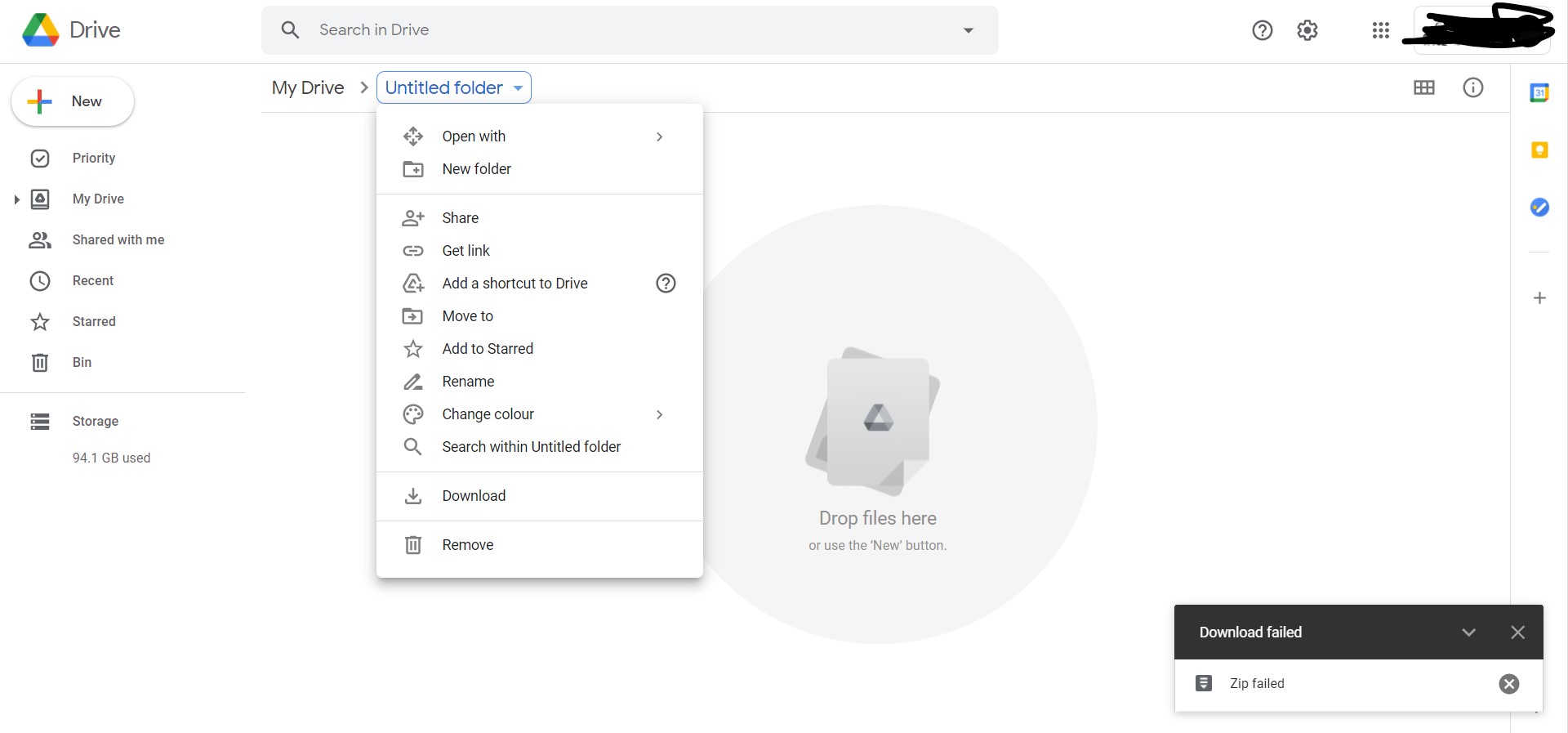
Understanding the problem helps you fix it faster. When you download multiple files or an entire folder, Google Drive does not grab a ready-made ZIP file. It creates one on the spot.
Read Also: How to Batch Scan Multiple Pages in Google Drive Android?
The process happens on Google's servers. It zips your files in real time and streams the archive to your browser. This on-demand system has limits. If anything interrupts the process, your download stalls.
Common Causes of the Stuck Zipping Issue
Too many files or huge folders. Google Drive struggles with folders containing thousands of files or very large videos. The server has to hold the session open while streaming. If it takes too long, the process times out silently.
Browser problems. Extensions, privacy settings, and outdated browsers can interfere. Even background tab throttling can pause the download without you realizing it.
File size limits. Google Drive limits ZIP files to about 2GB and the number of files to roughly 500 per download. Exceed these limits, and the process fails or never completes.
Permission issues. Even if you can view files, Google Drive rechecks permissions during the zipping process. If something is off, the download fails.
Storage space. Your device needs 2-3 times the file size in free space before downloading. Not enough space means the download stalls.
Unstable internet. A weak or inconsistent connection causes downloads to fail or get stuck.
How to Fix Google Drive Zipping File Stuck: 10 Methods That Work
1: Try Incognito Mode Immediately
This is the fastest fix.
Open an incognito or private window in your browser. Sign in to Google Drive. Try downloading your files again.
You Must Also Like: Google Drive vs Google Storage: Which One Should You Use?
Why does this work? Incognito mode disables most browser extensions automatically. Extensions are a common culprit. They block downloads, interfere with scripts, or cause conflicts.
Keep the incognito window open until the download finishes.
What if it still fails in incognito? Try Method 2.
2: Clear Browser Cache and Cookies
Stored data can cause conflicts.
In Chrome or Edge:
-
Go to Settings
-
Navigate to Privacy and security
-
Choose Cookies and other site data
-
Remove stored data for Google Drive
You can also clear all cache and cookies for a fresh start.
In Firefox, clearing site data for Google Drive often resolves cookie-related issues that block Google apps from loading properly.
Important: After clearing cache, restart your browser before trying again.
3: Sign Out of Other Google Accounts
Multiple signed-in accounts confuse Google Drive.
Sign out of all other Google accounts in your browser. Keep only the one you need. Or use guest mode in Chrome and sign in with just that account.
This simple step has solved the problem for many users.
4: Switch Browsers
Some browsers handle Google Drive better than others.
If Chrome is failing, try Firefox, Edge, or Brave. Firefox users have reported that Google Drive functions normally in Edge with default settings.
I have personally seen downloads fail in one browser and succeed instantly in another.
5: Download Files Individually
This is the most reliable workaround.
Instead of downloading a whole folder, select files one by one. Download them separately.
Yes, it takes longer. But it works. Google Drive does not need to create a massive ZIP file. Each download is smaller and faster.
For folders with many files, this is often the only solution.
6: Break Large Downloads into Smaller Batches
If you have hundreds of files, do not download them all at once.
Select 20-30 files at a time. Download each batch separately. This reduces the strain on Google's servers. It also reduces the chance of hitting the 500-file limit.
7: Use the Google Drive Desktop App
The web interface is convenient but not always reliable for large files.
The Google Drive desktop app handles big downloads better. It can resume interrupted downloads. It is more stable for large transfers.
Install the app. Sync your files locally. Or use it to download folders directly.
8: Create a ZIP File on Google Drive First
Instead of letting Google Drive zip on download, create the ZIP file beforehand.
Select your files. Right-click. Choose "Download." This still creates a ZIP on the server.
But you can also use third-party tools or extensions that handle the compression locally. These tools download the raw files to your device and compress them there. No server-side zipping. No timeouts.
9: Check File Permissions
If you are downloading shared files, verify your access.
Right-click the file. Select "File Information." Check the "Who has access" tab. If you do not have proper permission, you cannot download or access the file.
Contact the file owner to request access.
10: Restart Your Computer
Sometimes a simple restart fixes everything.
Restarting clears temporary files. It resets network connections. It closes background processes that might interfere.
Try this before any complex troubleshooting.
How to Download ZIP Files from Google Drive on Phone?
The mobile app has its own quirks. Here is how to handle them.
On Android
The Google Drive zipping file stuck problem is common on Android.
Fix 1: Use the browser method.
-
Swipe the "Preparing download" notification away.
-
Remove Google Drive from recent apps.
-
Open the file again. Copy the drive link.
-
Open Chrome or another browser. Paste the link.
-
Tap the download icon. Select "Download Anyway".
The browser version handles large downloads better than the app.
Fix 2: Check mobile data settings.
Google Drive may restrict downloads over mobile data automatically. Your phone's "Data Saver" mode can also block large files.
Go to Settings > Apps > Drive > Mobile data. Ensure background data is allowed.
Fix 3: Clear app cache.
Go to Settings > Apps > Drive. Clear cache and data. This often resolves download issues.
Fix 4: Update the app.
Open Google Play. Search for Google Drive. Install any available updates.
On iPhone
-
Open Settings
-
Scroll to Drive
-
Confirm that Cellular Data is enabled
If downloads still fail, use the browser method described above.
Download Individual Files on Mobile
When downloading a folder on Android, the app starts zipping all files. This can cause it to get stuck. Download each file separately if possible. It takes more time but works reliably.
Preventing the Google Drive Zipping File Stuck Issue
Keep Downloads Under 2GB
Google's ZIP limit is approximately 2GB. If your folder exceeds this, split it into smaller parts.
Limit Files to 500 Per Download
The file count limit is around 500. Download in smaller batches.
Use a Stable Internet Connection
A weak connection causes failures. Use Wi-Fi for large downloads. If using mobile data, ensure you have sufficient speed and data allowance.
Keep Your Browser Updated
Outdated browsers cause compatibility issues. Update regularly.
Disable Problematic Extensions
Privacy, ad-blocking, and script-blocking extensions can interfere. Disable them temporarily when downloading from Google Drive.
Use a Download Manager
For very large files, consider using a download manager. These tools can resume interrupted downloads. They handle network drops better than browsers.
Final Thoughts
The Google Drive zipping file stuck issue is frustrating. But it is fixable.
Start with the simplest solutions: incognito mode, clearing cache, or switching browsers. If those fail, download files individually or in smaller batches.
For mobile users, the browser method often works when the app does not. Remember the limits. Keep downloads under 2GB. Stay under 500 files per download. Use a stable connection.
These methods have worked for me countless times. They will work for you too.
Common Questions About Google Drive Zipping Issues
How long should "Preparing download" take?
Normally, it takes 1-2 minutes before the download starts. If it takes longer, it is probably stuck.
Why does Google Drive keep saying "Zip failed"?
This error appears when the zipping process encounters a problem. Common causes include file size limits, permission issues, or browser conflicts.
Can I download a folder from Google Drive without zipping?
No. Google Drive always zips folders for download. You cannot download a folder as individual files in one go.
What is the maximum file size for Google Drive ZIP downloads?
Google limits ZIP files to approximately 2GB. If your download exceeds this, the process fails.
Why does Google Drive get stuck on "Preparing download" on Android?
The Android app struggles with large folders. It starts zipping all files, which can cause it to get stuck. Use the browser method as a workaround.
Does incognito mode really help?
Yes. Incognito mode disables most browser extensions. Extensions are a common cause of download failures.