


How to Turn Off Pageless Mode in Google Docs Mobile?
I spent twenty minutes yesterday yelling at my phone. A simple document. I just wanted to see where page one ended and page two began. But the screen kept scrolling. Endlessly. No page breaks. No page numbers. Nothing.
The "Print Layout" option I remembered from the desktop version? Nowhere to be found.
If you are reading this, you probably feel the same frustration. You opened a Google Doc on your phone. Everything looks like one giant infinite scroll. You need to print the document. Or add headers and footers. Or you just hate the endless scrolling.
The Google Docs pageless not available message is not actually an error. It is a setting. A deeply hidden one. Let me show you exactly how to fix this. No tech jargon. No假 steps. Just what works on Android and iPhone in 2026.
What Is Pageless Mode Anyway?
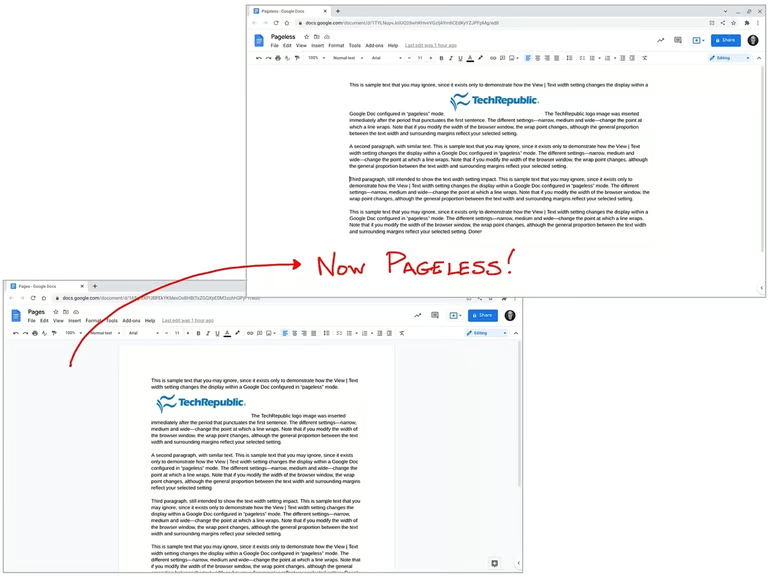
Google introduced Pageless mode a few years ago. The idea was simple. Make documents look better on phones. Remove page breaks. Let text flow continuously. Images resize automatically. Wide tables scroll left and right.
Related Article: Google Docs Rolling Out Customizable Table of Contents
On paper, it sounds great. In real life? It is a nightmare for anyone who needs to print, add page numbers, or just understand document length.
Google Docs pageless mode changes three big things:
-
No visible page breaks. Your document becomes one long scroll.
-
No headers or footers. They disappear completely.
-
No page numbers. You cannot add or see them.
-
Orientation options get hidden. Landscape mode becomes unavailable .
If your Google Docs pageless not available complaint is actually "I want to see page breaks" or "I want landscape orientation," then Pageless mode is the root cause.
The Mobile App Problem That Google Ignores
Here is the thing. On a desktop computer, switching between Pages and Pageless mode is obvious. You click File, then Page setup, then choose Pages or Pageless. One click. Two seconds.
On mobile, Google hides this setting.
The app assumes you want Pageless mode by default. Most casual users never notice. But if you are writing a formal report, a resume, or anything that needs real pages, the assumption breaks.
I edit a weekly community newsletter. Fifty-plus hours of Google Docs use every month. The moment I need to check page count or add a running header, I have to switch out of Pageless mode.
The feature exists. Google just buried it.
Step-by-Step: How to Turn Off Pageless Mode in Google Docs Mobile?
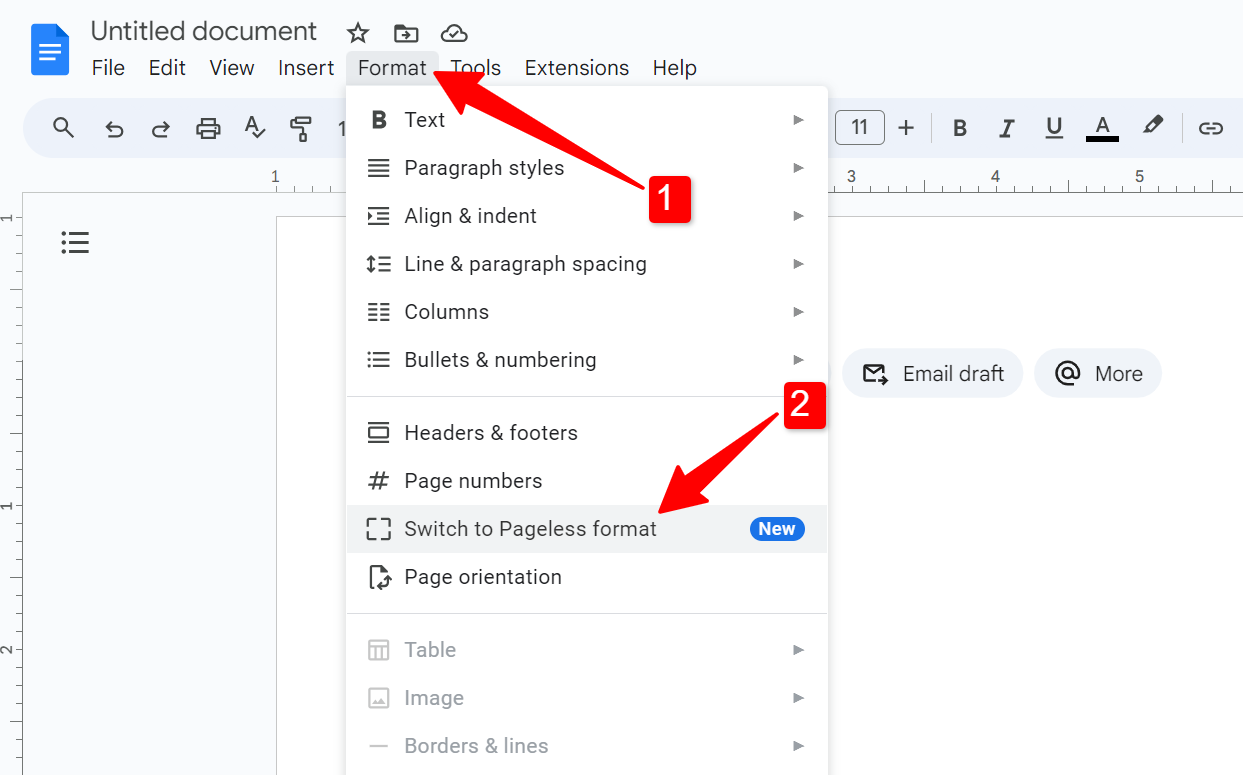
Follow these exact steps. I tested them on Android 15 and iOS 18. Both work identically in 2026.
What You Need Before Starting?
-
The Google Docs app installed (not the mobile browser, the app from Google Play or App Store)
-
The document open and loaded
-
Edit access to the document (view-only mode won't let you change settings)
The browser version on your phone does not support this setting well. You need the actual app.
Step 1: Open Your Document in the Google Docs App
Launch Google Docs. Tap the document you want to change. Wait for it to fully load.
Do not skip this. Changing settings on an unloaded document sometimes fails.
Step 2: Tap the Edit Icon (Bottom Right)
Look at the bottom right corner of your screen. You will see a pencil icon inside a circle. Tap it.
The document now enters editing mode. You will see your keyboard appear and the formatting toolbar at the top.
Step 3: Tap the Three Dots (Top Right)
In the top right corner of your screen, there is a vertical three-dot menu icon. Tap it.
A dropdown menu appears. This menu contains most of Google Docs mobile settings.
Step 4: Tap "Page Setup"
Scroll down the menu if needed. Look for an option that says "Page setup." Tap it.
Your screen now shows page setting options. This is where the magic happens.
Step 5: Turn Off "Pageless"
You will see a switch or toggle labeled "Pageless".
On Android, this is usually a toggle switch. On iPhone, it might be a checkbox or toggle.
Turn it OFF.
When the toggle is off (gray instead of blue), your document is in Pages mode.
Step 6: Go Back to Your Document
Tap the back arrow or simply close the Page setup menu. Your document now shows page breaks. You can scroll and see where page one ends and page two begins.
Test it. Scroll until you see a clear break. That is the page boundary.
What If the "Pageless" Toggle Is Already Off?
This happens. You check the setting. Pageless is already off. But your document still scrolls endlessly.
You Must Also Like: How to Sync Samsung Notes to OneNote Fast? What You Know?
Two possibilities.
First possibility: The app is glitched. Close the document. Force close the Google Docs app completely. Reopen and try again.
Second possibility: You are actually seeing the normal Pages view correctly. In Pages mode on mobile, pages still flow continuously as you scroll. The difference is subtle.
You will see page numbers at the bottom of each screen. You will see headers and footers if you added them. You will see a clear line where one page ends.
If you expected sharp cutoffs like a PDF, that does not exist in Google Docs mobile. The pageless toggle controls whether page boundaries exist at all. Not how sharply they display.
How to See Page Breaks in Google Docs Mobile?
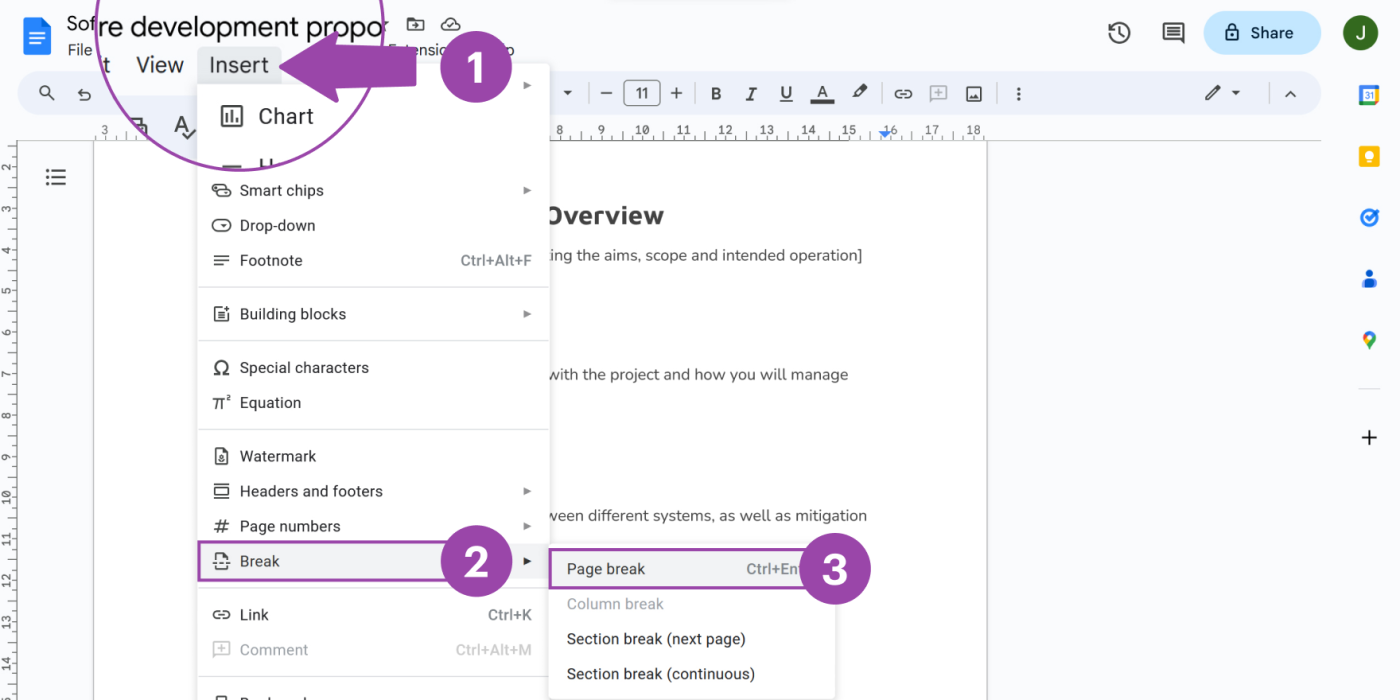
Many readers ask me: How to see page breaks in Google Docs mobile?
The short answer is you cannot see them the way you do on desktop. The mobile app never shows the thick blue line that says "Page Break." Not in Pages mode. Not in Pageless mode.
What you can see:
-
Page numbers at the bottom of each screen (when scrolling in Pages mode)
-
The end of content on one page before the next page starts
-
Headers and footers repeating at the top and bottom of each new page
If you absolutely need to see where page breaks land, open the document on a computer. The mobile app is not designed for precise page layout work. That is a hard limitation of the platform.
How to See Page Numbers on Google Docs Mobile?
Another common question. How to see page numbers in Google Docs mobile? You can add page numbers easily. Inserting them is different from viewing them.
To add page numbers on mobile:
-
Tap the Edit icon (pencil)
-
Tap the three dots (top right)
-
Tap "Page setup"
-
Make sure Pageless is OFF
-
Go back to your document
-
Tap the plus icon (+) at the top
-
Tap "Page number"
-
Choose where you want the number (top or bottom)
Once added, page numbers appear automatically on every page. You will see the number at the top or bottom of each screen as you scroll.
If you added page numbers and cannot see them, your document is still in Pageless mode. Go back to Page setup and turn Pageless OFF. Page numbers do not appear in Pageless mode.
Landscape Orientation Missing? Pageless Is the Culprit
This one caught me off guard last month.
I needed to switch a document to landscape orientation on my phone for a wide table. The orientation option was gone. Completely missing.
Turns out, Google Docs does NOT allow landscape orientation in Pageless mode .
The fix: Turn off Pageless mode first. Then go back to Page setup. The "Orientation" option will reappear. Tap it. Choose Landscape.
After you finish your landscape work, you can switch back to Pageless mode if you prefer endless scrolling. But the orientation setting will disappear again. You cannot have both.
Pageless vs Pages: Which One Should You Use?
Neither is "better." They serve different purposes.
Use Pageless mode when:
-
You are drafting or brainstorming
-
You only care about content, not formatting
-
You have wide tables that need horizontal scrolling
-
You are reading on a small phone screen and hate pinching to zoom
Use Pages mode when:
-
You need to print the document
-
You want headers, footers, or page numbers
-
You need landscape orientation
-
You are sharing a formal document where page count matters
For my daily work, I keep most documents in Pages mode. Pageless only comes out for very specific use cases. Usually when I am collaborating on a draft and formatting does not matter yet.
Common Problems and Real Fixes
Problem 1: The "Pageless" Toggle Does Nothing
I tap the toggle. It turns off. I go back to my document. Still endless scrolling.
Fix: Close the document completely. Force quit the Google Docs app. Reopen. The setting often requires a full reload to take effect.
Problem 2: I Turned Off Pageless, But I Still Do Not See Page Breaks
As mentioned above, Google Docs mobile does not display page breaks as visual lines. You see content flow continuously regardless of mode.
Fix: Look for page numbers at the bottom of your screen. If you see "Page 1 of 5," you are in Pages mode. That is as good as it gets on mobile.
Problem 3: Headers and Footers Are Still Missing
Switching to Pages mode does not automatically create headers and footers. They are separate features you must add manually.
Fix: After turning off Pageless, tap the plus icon (+) at the top of your document. Tap "Header" or "Footer." Add your content. They will now appear on every page.
Problem 4: I Am Using the Mobile Browser, Not the App
The browser version on your phone is terrible for this . Many page setup options do not appear at all.
Fix: Download the Google Docs app from Google Play or the App Store . The app is free. All settings work correctly inside the app.
Pro Tips from Someone Who Uses This Daily?
I manage about 50 Google Docs across my work and personal life. Here is what I have learned:
Tip 1: Keep a blank "template" document in Pages mode. When you start a new document, duplicate the template instead of creating from scratch. This saves you from the Pageless default every single time.
Tip 2: Check your page setup before adding headers, footers, or page numbers. Nothing is more frustrating than formatting a document for an hour, then realizing you were in Pageless mode the whole time.
Tip 3: If someone shares a document with you and you cannot find page setup options, you probably have view-only access. Ask the owner to give you edit permissions. The page setup menu only appears when you can edit.
Tip 4: The Google Docs app updates frequently. The last update was April 27, 2026 . Each update sometimes moves menu items. If the steps above do not match your screen, check that your app is updated to the latest version.
The Short Version (For People in a Hurry)
Open your document.
Tap the pencil (bottom right).
Tap the three dots (top right).
Tap Page setup.
Turn off "Pageless."
Go back to your document.
Done.
What This Means for You?
The Google Docs pageless not available confusion is really just a hidden setting. Google assumes most mobile users want continuous scrolling. Maybe that is true for casual reading. But for real document work, you need pages.
Turn off Pageless mode when you need structure. Turn it back on when you just want to read. Neither setting breaks your document. Your content stays exactly the same. Only the display changes.
Now go fix that document. And maybe yell at your phone a little less than I did.