


How to Fix Google Workspace Migration Errors: Easy Guide
Google Workspace migration errors usually trace back to four culprits: wrong file types, closed Outlook, network timeouts, or account conflicts. I have walked dozens of users through Outlook-to-Gmail moves over the past three years.
The tool Google gives you is called GWMMO. It works, but only if you follow the rules. The biggest mistake I see is people trying to import from an OST file. GWMMO only accepts PST files or a live Exchange connection.
Another common failure is leaving Outlook open during the migration. That single mistake causes partial imports and silent failures. This guide breaks down every error I have encountered, why it happens, and the exact steps to fix it.
How to Fix Google Workspace Migration Error?
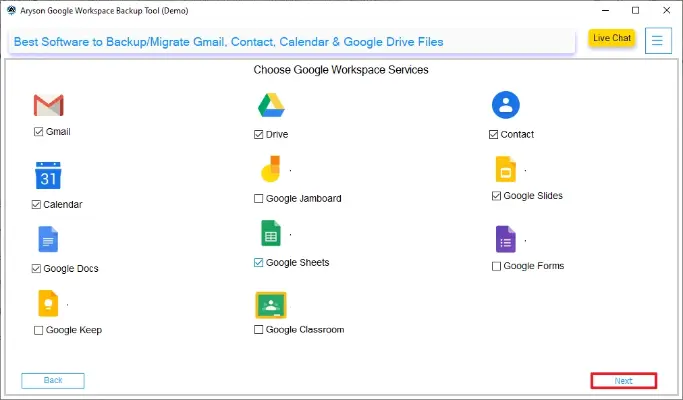
GWMMO supports two sources. A PST file. Or a direct Exchange account . That is it.
If you try to import from an OST file, the migration will fail. Every time. OST files are cached copies of Exchange data. They are locked to the original profile. GWMMO cannot read them.
Read Also: The Google Plus Circles Equivalent in Gmail Explained (2026 Guide)
The fix: Export your Outlook data to a PST file first. Go to File > Open & Export > Import/Export. Choose "Export to a file." Select your mailbox. Save the PST somewhere you can find it.
Then run GWMMO and point it at that PST file.
Outlook Must Be Closed
This sounds obvious. It is not. Many people start the migration, then open Outlook to check email while it runs. That breaks the process.
GWMMO needs exclusive access to the data source. If Outlook is open, the tool cannot read the files properly. You get partial imports. Some emails move. Some do not. The log file fills with errors.
The fix: Close Outlook completely before you start. Check Task Manager. Make sure no Outlook processes are running in the background. Leave it closed until the migration finishes.
Network Timeouts and Error 80072ee2
This is the error I see most often with large mailboxes. The migration starts fine. Then it stalls. The log shows "Windows Update error code 80072ee2".
This happens when a message with a large attachment takes more than 120 seconds to upload. The connection times out. GWMMO retries. After multiple retries, it stops.
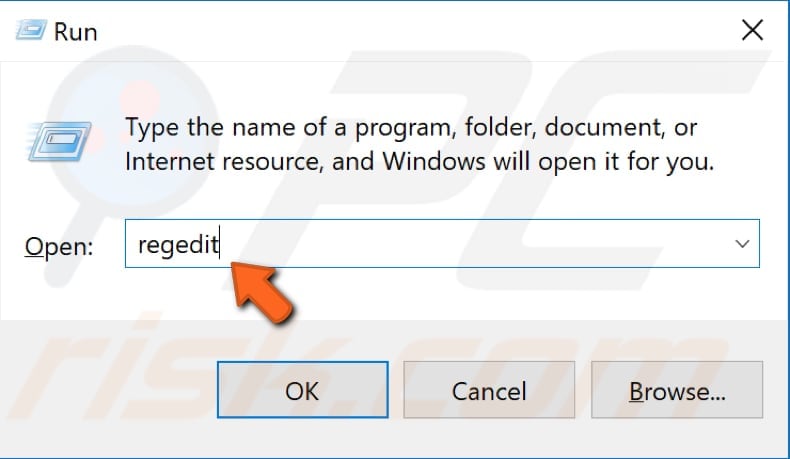
The fix: You need to extend the timeout period. This requires editing the Windows registry. Do not worry. It is simpler than it sounds.
Open the Registry Editor. Navigate to HKEY_CURRENT_USER\Software\Google\Google Apps Migration. Create a new key called "Other." Inside that key, create three DWORD values :
-
ResolveTimeoutSeconds = 00000030 (48 seconds)
-
ConnectTimeoutSeconds = 00000030 (48 seconds)
-
SendTimeoutSeconds = 00000600 (1536 seconds)
You can adjust these values. The SendTimeoutSeconds is the important one. That controls how long a message can take to upload before the connection drops.
Important note: If you run 32-bit Outlook on 64-bit Windows, you must add these keys in the correct location for 32-bit applications.
Duplicate Contacts and Calendar Events
You migrate once. It works. Then you migrate again to catch missed emails. Now you have two copies of every contact.
You Must Also Like: How to Automate Google Chat Spaces Using the Gemini API?
This happens because GWMMO does not automatically skip duplicates. If you choose "Import all data" on a second run, it re-imports everything.
The fix: Use the "Import only data not previously imported" option on any second run. This tells GWMMO to skip what it already moved.
If you already have duplicates, you have two choices. Delete all contacts from Google Workspace and re-import once. Or manually merge duplicates in Google Contacts.
The "Conflict Account" Error
This error stops migrations before they start. It happens when a personal Google account already uses the same email address as your Workspace account.
Example: You created a personal Gmail using your work email (yourname@company.com). Later, your company signed up for Google Workspace with that same domain. Now two accounts share one email address. Google does not allow that.
The fix: You must resolve the conflict first. The user can rename the personal account. Or the admin can use the Transfer tool to convert the unmanaged account into a managed one.
You cannot migrate data into a conflicted account. Fix the conflict before you touch GWMMO.
Checking the Logs: Your Best Diagnostic Tool
When something fails, you need to know why. GWMMO writes trace logs to your computer. You can find them here:
Windows 7 and up: C:\Users<your-username>\AppData\Local\Google\Google Apps Migration\Tracing\ClientMigration
Older Windows: C:\Documents and Settings<your-username>\Local Settings\Application Data\Google\Google Apps Migration\Tracing\ClientMigration
Submit these logs to the Google Admin Toolbox Log Analyzer. It identifies most issues in seconds.
The logs tell you exactly which messages failed and why. Large attachments. Read receipts. Delivery reports. GWMMO does not migrate read receipts or delivery status notifications.
Messages That GWMMO Cannot Migrate
Not everything moves. GWMMO skips certain message types:
-
Read receipts
-
Delivery success reports
-
Non-delivery reports
If you need those records, export them separately. Save them as PDFs or text files. GWMMO will never move them.
Large Mailboxes: When to Split the Migration
A 50GB mailbox will not migrate in one shot. It will time out. It will fail. You will waste hours.
The fix: Split the migration by date. GWMMO lets you choose "only migrate messages received after this date" or "before this date".
Run the migration in chunks. Move the last two years first. Then the two years before that. Smaller batches mean fewer timeouts and easier troubleshooting.
What About Google Workspace Migrate (GWM)?
GWMMO is for single users moving from Outlook. Google Workspace Migrate is a different tool. It handles large-scale enterprise migrations from Exchange, SharePoint, and file shares.
GWM has its own error codes. Error 400 means corrupted source data. Error 401 means permission problems. Error 403 means a service is disabled or you hit an API quota.
If you are a Google Workspace admin moving hundreds of users, you use GWM. If you are one person moving your Outlook mailbox, you use GWMMO.
FAQ's- About Google Workspace Migration Tools
Why does GWMMO say my data is not importing?
Check three things. Outlook must be closed. You must use a PST file, not an OST. Your network connection must be stable.
How do I fix the 80072ee2 error?
Edit the Windows registry to increase the timeout values. Set SendTimeoutSeconds to 00000600 or higher.
Can I migrate from Exchange directly?
Yes. GWMMO supports direct Exchange migration. You need the correct impersonation permissions on the Exchange server.
What happens if the migration stops halfway?
Restart GWMMO. Choose "Import only data not previously imported." It picks up where it left off .
Why do I have duplicate contacts after migration?
You imported contacts more than once. Delete all contacts from Google Workspace and re-import once. Or merge duplicates manually.
Final Thoughts: Slow Down and Follow the Rules
Most migration errors come from rushing. People skip the PST export. They leave Outlook open. They ignore the 120-second timeout. GWMMO is not a magic button. It is a tool with rules. Follow the rules, and it works. Break them, and you get cryptic error codes.
Export to PST. Close Outlook. Extend the timeout if you have large attachments. Split big mailboxes into chunks. Check the logs when something fails.
The migration will take hours. That is normal. A 20GB mailbox can take half a day on a slow connection. Do not panic. Do not open Outlook. Let it run.
If you hit a wall, the logs tell you why. Read them. Fix the cause. Try again.