


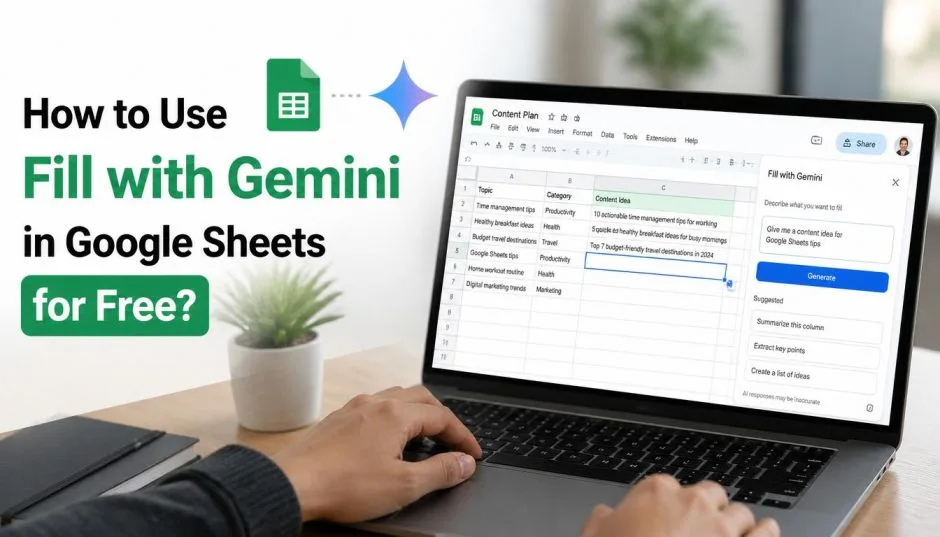
How to Use Fill with Gemini in Google Sheets for Free?
I used to spend hours typing data into spreadsheets. Columns of names. Addresses. Product descriptions. It was mind-numbing. I knew there had to be a better way.
Then I found Gemini in Google Sheets. It is not perfect. But it saves me hours every week. I am going to show you exactly how I use it. And I will be honest about what it cannot do.
This guide is for anyone trying to use Gemini in Google Sheets android, iOS, or desktop. The features are slightly different on each. I will explain all of them.
What Is Gemini in Google Sheets Actually Doing?
Google has been adding AI to its Workspace apps for a while now. The Gemini side panel is the main entry point. You click it and ask questions or give commands.
Read Also: How to Fix Common Errors When Using Google Takeout Transfer for School Accounts?
The big update came in early 2026. Gemini learned to access your Gmail and Drive files. That is a game changer. You can now tell it to "organize my move to Chicago" and it will pull packing lists, contact info for utilities, and moving quotes from your emails. It builds the whole spreadsheet for you.
This is not just a gimmick. I have used it for client projects, travel planning, and inventory tracking. It works.
The "Fill with Gemini" Feature – The Real Time-Saver
The "Fill with Gemini" tool is what saves me the most time. It auto-populates table cells. Google says it is nine times faster than manual entry. They tested it with 95 people. I believe it.
Here is how it works. You have a table with some data. Maybe you have a list of cities. You need the population and state for each. You type "population" and "state" as column headers. You use "Fill with Gemini" and drag down. The AI fills in the missing data.
I tested this with a list of 50 cities. It took me maybe three minutes. Manually, it would have taken an hour. The key is making sure the AI understands what you want. Be specific in your headers.
Example from Google: They used a college application tracker. You have columns for school name, tuition, and due date. Gemini can pull tuition information from the web and fill it in for each school.
How to Use Gemini in Google Sheets for Free?

This is where it gets tricky. "Free" is relative. There is no standalone free version of Gemini in Sheets. You need a Google Workspace plan.
Here is the breakdown for 2026:
-
Business Starter: ~$7/month. You get limited Gemini access. Only in Gmail. About five prompts per day in the Gemini app.
-
Business Standard: ~$14/month. This is the sweet spot. You get Gemini in all Workspace apps, including Sheets. Full "Fill with Gemini" access. Google AI Pro is included.
-
Business Plus: ~$22/month. You get extended usage limits.
The old paid add-on for Gemini Workspace was removed in early 2026. It is now built into the paid plans. If you are on a paid Workspace plan, you already have access to the basic features.
Important for Android users
The "Fill with Gemini" and "Help me create" features are primarily designed for the desktop web version of Sheets. The mobile apps, including Gemini in Google Sheets android and iOS, have more limited functionality.
You Must Also Like: Does Google Meeting Have a Time Limit?
They can access and view spreadsheets created with Gemini. But the full creation and filling tools are not always available. I use my laptop for heavy lifting and my phone for quick checks.
Google One AI Premium:
There is also the Google One AI Premium plan. This is for personal accounts, not Workspace. It gives you Gemini in Gmail, Docs, and other apps. But the deep integration with Sheets, like pulling data from Drive, is a Workspace feature.
My Step-by-Step Workflow
Step 1: Enable the Workspace Extension
You need to connect Gemini to your Drive. This is critical. I forgot to do this at first and it did not work. In the Gemini web app or mobile app, go to settings. Find the Workspace extension. Enable it. This allows Gemini to read your Drive files.
Step 2: Use the Side Panel
Open a Google Sheet. Look for the Gemini icon in the top right. It is a small star. Click it. The side panel opens. This is where you type your prompts.
Step 3: Ask for What You Need
You can ask for almost anything. I have used prompts like:
-
"Create a project tracker for my client with columns for task, status, and deadline."
-
"Fill in the missing state names for this list of US cities."
-
"Summarize this data and suggest a chart type."
Gemini will generate tables, fill in data, or suggest formulas.
Step 4: Let It Access Your Data
This is where the magic happens. You can say:
Help me organize my upcoming move to Chicago. Create a checklist for packing by room, a contact list for utilities, and a spreadsheet to track moving company quotes from my inbox.
Gemini will pull the relevant data from your emails and files.
Step 5: Verify the Output
Do not trust Gemini blindly. I have caught mistakes. It once filled in the wrong state for a city. Always double-check the data. It is an assistant, not a perfect oracle.
What It Cannot Do (Honest Limitations)?
Gemini in Sheets is not a replacement for a data analyst. It is a tool for speeding up repetitive tasks.
It struggles with very complex financial models. It cannot handle large datasets with complex dependencies. It also has issues with certain data types. I tried to use it for a time-series analysis and it got confused.
Google notes that it cannot access Drive files from the mobile app on iPhone. You have to use the web app. The Android version is better but still limited compared to the desktop.
Security and Privacy (What You Need to Know)?
This matters. If you use a paid Workspace plan, your data does not train Google's public models. You have a Data Processing Agreement (DPA) that guarantees this.
If you use a free personal Gmail account for Gemini, there is no such guarantee. Do not process sensitive professional data on a free account. Google can use your interactions to improve its services.
The Final Thoughts
Gemini in Google Sheets is a real productivity booster. The Gemini in Google Sheets mobile version is useful for quick access. But the true power is on the desktop.
The "Fill with Gemini" feature alone saves me hours. It is worth the $14/month Workspace plan just for that. I would not pay for the AI Expanded Access add-on. It is overkill for most people.
If you are on a Workspace plan, start using it today. Start small. Ask it to fill in a simple column. Then try building a full sheet. The more you use it, the better it gets. And you will stop typing everything manually.