


How to Fix Google Cloud Console UI Glitches And Layout Issues?
The google cloud console UI messed up problem is almost always a client-side issue, not a Google outage. I have seen the console render as a blank white page, show overlapping panels, or refuse to load specific sections while other tabs work fine.
Google's own troubleshooting documentation confirms the pattern: most page-loading failures come from browser settings, extensions, or network restrictions, not from Google's servers.
The fix starts with a hard reset of your local environment before you assume the platform is broken. Here is the honest sequence to follow, the specific layout bugs Google has acknowledged, and the one scenario where the problem is genuinely on their end.
Top 5 Best Google Cloud Console UI Messed UP 2026
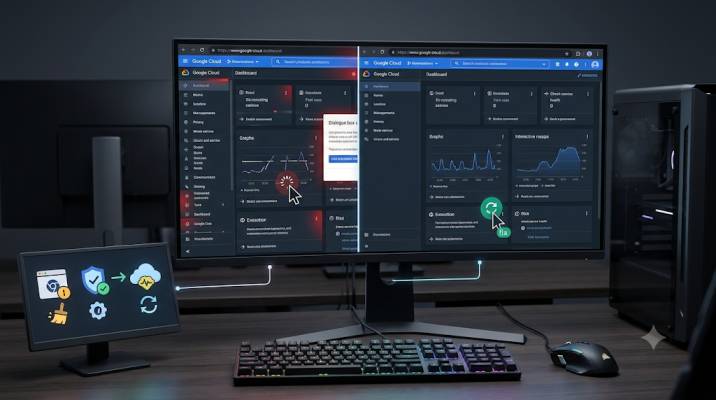
Step One: Clear the Local Interference
Before you touch anything else, eliminate the variables Google can't control.
Read Also: Google Cloud Next 2026 Announcements and Key Updates
Clear cookies and cache. Google's support page lists this as the first step for a reason. Corrupted local data causes rendering failures that look like UI bugs . Clear everything for the console domain, not just the last hour.
Try Incognito mode. This disables most browser extensions automatically. If the console loads correctly in Incognito, an extension is breaking the page . Ad blockers and privacy tools are the usual suspects. They block scripts the console needs to render panels and menus.
Disable extensions manually. If Incognito works, turn off extensions one by one until you find the culprit. uBlock Origin, Privacy Badger, and similar tools frequently interfere with Google's internal APIs.
Try a different browser or network. If Chrome fails, try Edge or Firefox. If your office Wi-Fi fails, try a mobile hotspot. Network-level firewalls and DNS filters can block the console's backend requests without showing an obvious error.
Step Two: Check the Google Auth Platform Settings
The LSI keyword "Google auth platform → audience" points to a real source of confusion. If your console behaves strangely when you try to configure OAuth consent screens or API access, the issue may be in the Auth Platform configuration, not the UI.
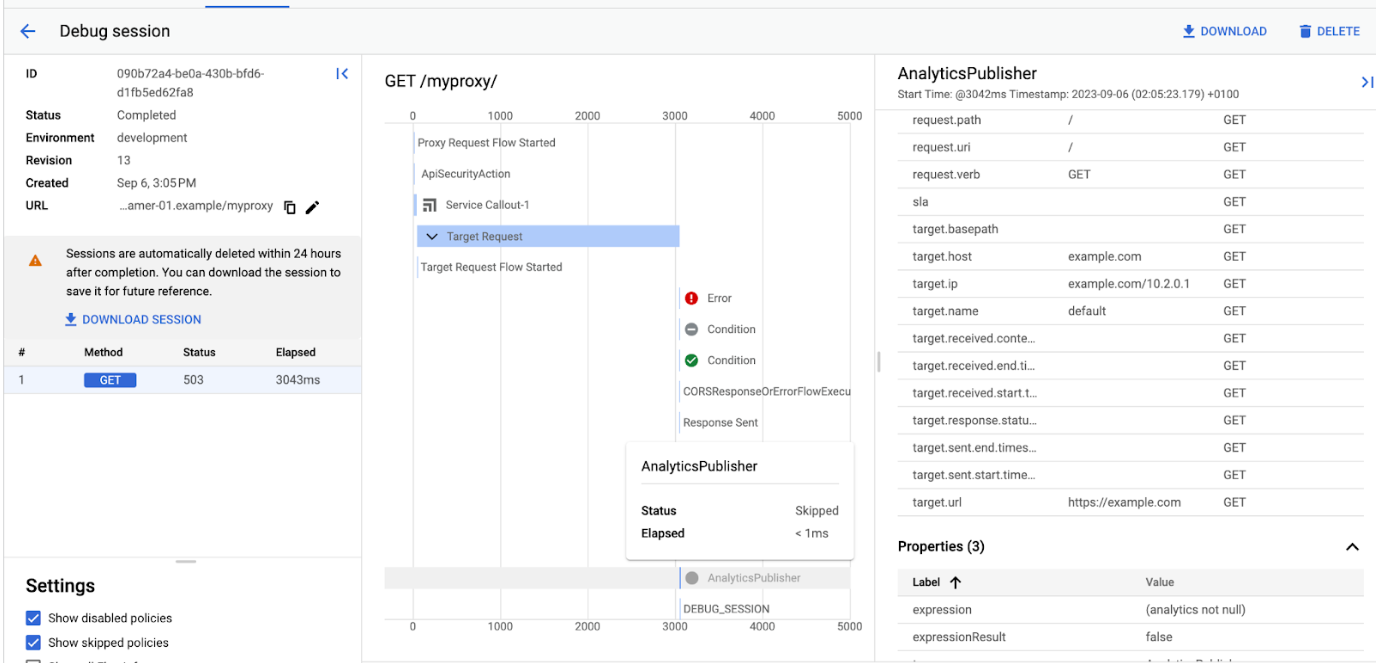
Google's documentation walks through the exact path: Menu → Google Auth Platform → Branding. If you see a message saying the platform isn't configured, click "Get Started" . The Audience setting under this section controls which user groups can authorize your app .
The layout issue here: If you have not completed the initial Auth Platform setup, some console pages may render partially or redirect you unexpectedly. Complete the branding and audience configuration first. That resolves the broken navigation.
Step Three: Recognize the Known Layout Bugs
Not every glitch is your fault. Google has acknowledged UI inconsistencies that are real bugs on their side.
You Must Also Like: Supercharge Your Customer Engagement Suite with Google AI
Cloud Storage public access display bug. When using conditional publicAccessPrevention policies, the Cloud Storage UI incorrectly shows all buckets as "Not public" even when they should be exempt through tags. This is a display error. The actual permissions are correct. The UI is wrong. Google has not published a fix date.
IAM Conditions permission display bug. A long-standing issue shows Cloud SQL instances as grayed out even when a user has admin access through conditional IAM policies. The API works. The console UI does not reflect it. This bug has been open for over a year with no ETA for a fix.
What this means for you: If your permissions work via gcloud but the UI shows them as missing, you are not doing anything wrong. The console is rendering the state incorrectly. Use the API or command line to verify actual access.
Step Four: Check for a Real Outage
The LSI keyword "Google Cloud outage today" is usually a false alarm. But sometimes it is not.
UptimeRobot's monitoring shows Google Cloud as operational for the vast majority of checks. The last 30 days showed 92% uptime with two incidents, including a europe-west2 region issue and Cloud Storage latency problems.
Uptimecheck's independent monitoring recorded zero outages in its tracking window.
The honest test: If the console fails in Incognito, on a different browser, and on a different network, then check Google's official status dashboard. If the dashboard shows green, the problem is still local. If it shows an active incident, wait. Nothing you do will fix a server-side failure.
Step Five: The Login Loop and Redirect Problem
The LSI keyword "Google Cloud console login" points to a separate frustration. Some users get stuck in a redirect loop, landing on the Vertex AI page or a billing onboarding screen instead of the console they wanted.
The fix that worked for developers on Google's forum: Log out entirely. Log into a different Google account. Open console.cloud.google.com to establish a clean session.
Then log back into your original account and navigate directly to the specific page you need using a full URL, such as https://console.cloud.google.com/apis/credentials?project=your-project-id.
The billing trigger: Some accounts get redirected because billing is not set up. Adding a payment method and completing the billing onboarding flow removes the redirect . This is not ideal, but it matches Google's documented behavior.
What to Do If the UI Still Fails?
If every local fix fails and the status dashboard shows no outage, you are likely hitting a genuine UI bug that Google has not fixed.
File an issue. Google's Issue Tracker accepts bug reports. Include the exact page, the browser version, whether Incognito works, and screenshots. The Cloud SQL IAM bug sat unresolved for over a year because reports were scattered. A clear report helps.
Use the API or gcloud as a workaround. If the console UI blocks a specific task (changing permissions, resizing a VM, managing storage), the command line usually works. The UI and the API are separate layers. The API is more reliable.
Wait for the next console update. Google deploys console changes frequently. A layout bug that appears today may vanish next week without an announcement. This is frustrating. It is also the reality of a web-based console.
The Final Thoughts
The google cloud console UI messed up problem is usually local. Clear cookies, try Incognito, disable extensions, and switch networks. Those four steps fix most cases.
If the console still fails, check the Auth Platform configuration and verify whether you are hitting one of Google's known display bugs. If the status dashboard shows no outage and Incognito fails on a different network, the problem is on Google's side. File an issue. Use the API. Wait for the fix.
Do not assume your account is broken. The console is a web application. Web applications break in predictable ways. The fixes follow the same pattern.