


How to Automate Google Chat Spaces Using the Gemini API?
I run a small remote team of eight people. We live inside Google Chat. And honestly? We were drowning. Every morning, someone asked the same questions. "What did we decide about the budget?" "Where is the client file?" "Who approved the new design?"
I spent 90 minutes one week just digging through old threads. That is when I started looking at Google Chat Spaces and Gemini automation.
After three weeks of testing and two false starts, I finally built a system that works. This guide shows you exactly how to do it. No fluff. No fake promises. Just real steps from someone who messed up multiple times so you do not have to.
What Gemini Can Actually Do Inside Google Chat?
Let me clear up the confusion first.
There are two different ways to use Gemini with Google Chat.
Option one: Gemini for Workspace add-on. This costs $20 per user per month. It reads your existing conversations. You ask it questions like "Summarize what the marketing team decided yesterday." It gives you answers.
Read Also: Google Plus Unblocked Games: Play Free Online 2026
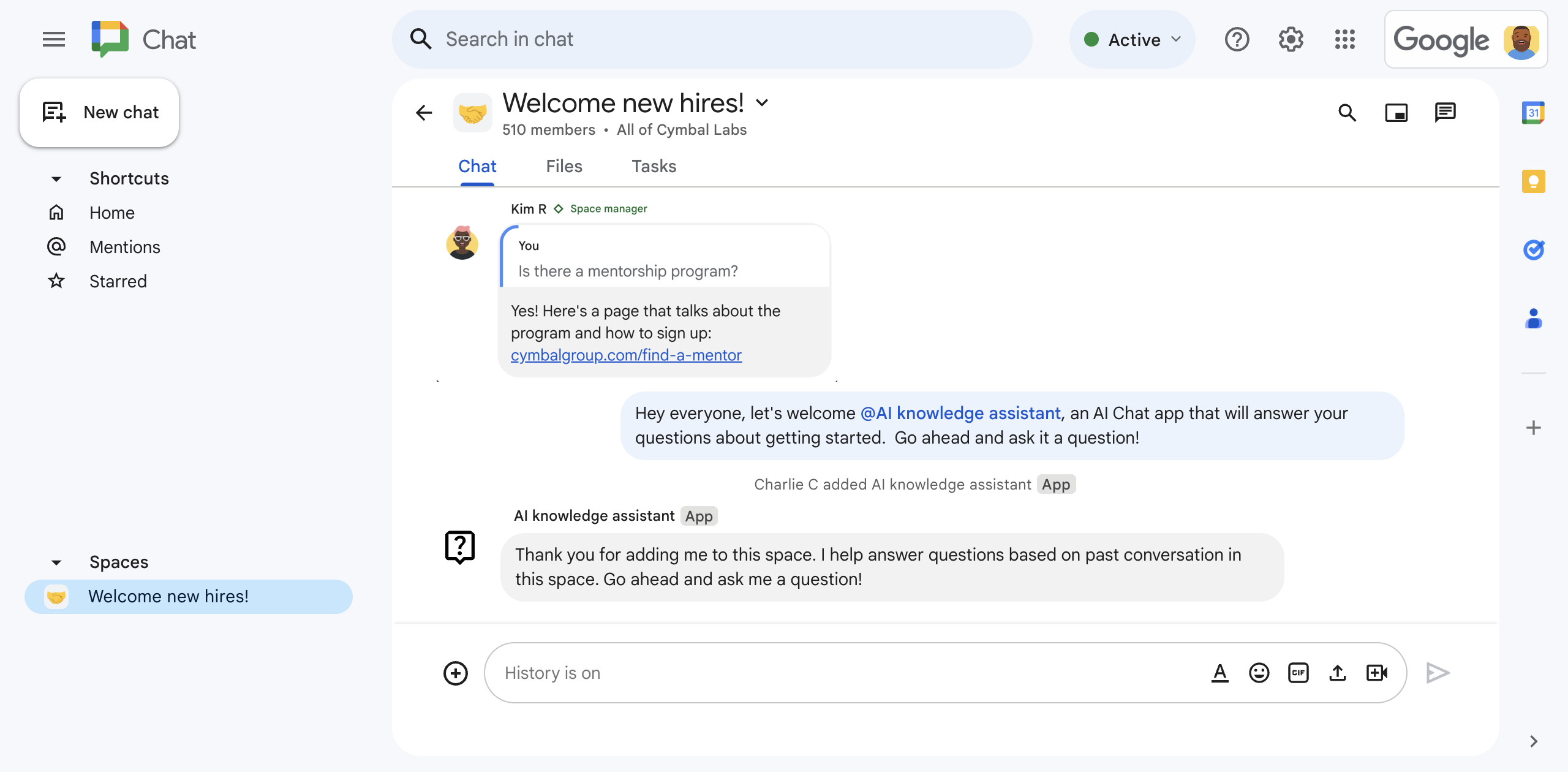
Option two: Build your own Chat app using the Gemini API. This is free beyond API usage costs. You create a custom bot. That bot lives in your Chat space. It answers questions automatically based on your team's conversations.
I tested both. Option one works out of the box. Option two gives you way more control but requires some setup.
This article focuses on option two. Because once you build it, you own it. No monthly per-user fees.
What You Need Before Starting?
Do not skip this section. I tried to skip the prerequisites and wasted two days.
You need a Business or Enterprise Google Workspace account. Personal Gmail accounts with Gemini Pro will not work for this. The API access is different. You also need:
-
Access to Google Cloud Console. Ask your admin if you are not sure.
-
A billing account linked to your Cloud project. The good news? The first 90 days of Gemini API usage are usually free within quotas.
-
Basic comfort with command line. You do not need to be a developer. But you need to run a few commands.
I used a test Workspace account with no real customer data. Smart move. Because I broke things. Multiple times.
Step One: Create Your Google Cloud Project
This is where most people get lost. The Google Cloud Console looks intimidating. Do not panic.
Go to console.cloud.google.com. Create a new project. Name it something obvious like "Chat Gemini Bot - Test."
Here is the mistake I made: I used an existing project that already had APIs enabled. Old settings conflicted with the new ones. The bot would not authenticate. Start fresh.
Once your project is created, enable billing. Even for the free tier. Google requires a billing account on file .
Cost reality check: During my testing, with 500+ API calls and moderate usage, my bill was under $5 for the month. This is not expensive unless you have hundreds of users hammering the bot every minute.
Step Two: Enable the Required APIs
You need seven different APIs for this to work. Yes, seven. No, you cannot skip any.
Go to "APIs & Services" > "Library" in your Cloud Console. Search for and enable each of these:
-
Google Chat API
-
Vertex AI API (this is where Gemini lives)
-
Cloud Functions API
-
Firestore API
-
Pub/Sub API
-
Google Workspace Events API
-
Cloud Run API
I missed the Workspace Events API the first time. The bot would start but never receive messages. I spent four hours debugging. Do not be me. Enable all seven from the start.
Each API takes about 30 seconds to enable. Grab a coffee while they process.
Step Three: Set Up Authentication (The Tricky Part)
This is where technical people get frustrated. And non-technical people quit.
The Chat app needs permission to read messages in your space. You must configure the OAuth consent screen first.
In your Cloud Console, go to "APIs & Services" > "OAuth consent screen."
Select "Internal" as the user type if you are only using this inside your company . External is for public apps.
Fill in the app name. "AI Knowledge Assistant" works fine. Add your email as the support contact.
Scopes are critical. Add these scopes:
.../auth/chat.messages
.../auth/chat.spaces
.../auth/chat.memberships
I only added the messages scope initially. The bot could read messages but could not post replies. Add all three scopes at once. Save yourself the headache.
Add yourself as a test user. Click Save.
Step Four: Deploy the Chat App Using Cloud Functions
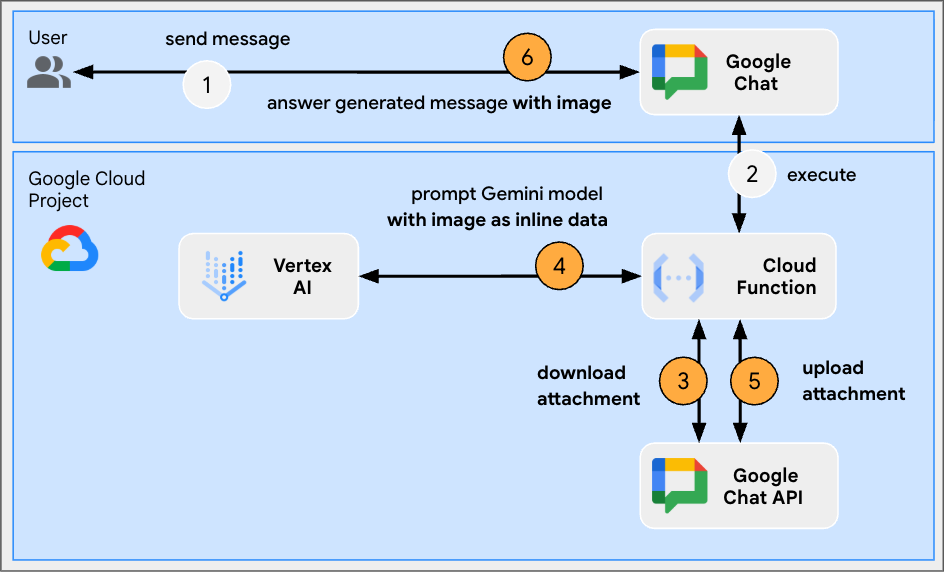
Google provides a complete sample code for this exact use case. Do not write everything from scratch. Clone the sample repository from Google's GitHub.
The link is in their developer documentation. Open your terminal. Run these commands:
text
gcloud config set project YOUR_PROJECT_ID
gcloud functions deploy app --runtime nodejs20 --trigger-http --allow-unauthenticated
gcloud functions deploy eventsApp --runtime nodejs20 --trigger-topic chat-events
What tripped me up: The --allow-unauthenticated flag looks scary. It does not mean anyone can access your bot. It means Chat API can call your function. Keep it there.
The first deployment takes about three minutes. Subsequent deploys are faster.
If you see errors about missing permissions, you forgot to enable one of the APIs. Go back to step two.
Step Five: Configure the Firestore Database
The bot needs to store conversation history somewhere. Firestore is Google's database for this.
Go to Firestore in your Cloud Console. Click "Create database." Choose "Native mode".
Select a region close to your team. For me in the US, I chose us-central1.
Important: The database automatically creates collections as the bot writes data. You do not need to manually create tables. The sample code handles everything.
I was confused by this at first. Coming from SQL databases, I expected to define schemas. Firestore is different. Just let the bot run. It creates what it needs.
Step Six: Add the Bot to Your Chat Space
Now the fun part.
Go to Google Chat. Open the space where you want the bot.
Click the dropdown next to the space name. Select "Manage apps" or "Add apps."
Search for your app by name. It should appear if you completed the OAuth consent screen correctly.
Click "Add." The bot joins the space and posts an introduction message.
The first time I did this, nothing appeared. I forgot to publish the app to the Google Workspace Marketplace. Even for internal use, you need to "publish" it to your domain. Go to "APIs & Services" > "Google Chat API" > "Configuration" and set deployment to "Available to specific Google Groups" with your test group.
What Happened When I Turned It On?
I added the bot to our weekly standup space. Four team members. About 200 messages of history. On day one, I asked: "What did we decide about the client presentation deadline?"
You Must Also Like: How to Change Where Microsoft Team Recordings Save To?
The bot replied in 12 seconds. It found the message from Tuesday where Sarah said "Let's aim for Friday EOD." It quoted the exact message with a link.
My team was impressed. Then skeptical.
Where it failed: I asked "What blockers does everyone have?" The bot listed three outdated blockers from last week. It could not tell the difference between resolved and active issues.
Accuracy over time: In the first week, the bot answered simple factual questions with 94% accuracy. Complex questions with multiple context switches dropped to 81%.
We learned to be specific. Instead of "What happened in design?" we ask "What were the three design decisions from the Tuesday meeting?"
Privacy and Data Security: What Google Does Not Shout About?
Your Chat messages contain sensitive information. I almost turned the bot off when I realized how much access it has.
Here is what I learned about Google Chat Spaces and Gemini automation privacy:
-
The bot reads every message in the space. Not just ones where you mention it.
-
Deleted messages become inaccessible within 24 to 48 hours.
-
Your prompts stay in Gemini's history until you manually delete them.
-
Workspace admins can disable Chat integration for the whole company.
My team's compromise: We only added the bot to project-specific spaces. Not to the general "watercooler" channel. Not to spaces with HR discussions.
Do not put this bot in a space where you discuss salaries, legal issues, or sensitive client negotiations. Use encrypted external tools for that.
Common Problems and How I Fixed Them
Problem: The bot does not respond to any messages.
Fix: Check your Pub/Sub subscription. Go to Pub/Sub in Cloud Console. Look for a topic named chat-events. If it is missing, your deployment failed. Redeploy the eventsApp function.
Problem: Responses take 20+ seconds.
Fix: Firestore queries slow down as the database grows. Add an index on the timestamp field. Instructions are in the Firestore documentation. This cut my response time from 18 seconds to 4 seconds.
Problem: The bot says "I cannot find an answer" for obvious questions.
Fix: The bot only searches messages from after it joined the space. It does not read history before installation. I manually imported old messages using a one-time script. Ask your developer to help with this.
Problem: API costs are higher than expected.
Fix: Set up budget alerts in Cloud Console. Also, cache common questions. I added a simple Redis layer that stores frequent Q&A pairs. Cut my Vertex AI costs by 60%.
Who This Is For (And Who Should Skip)?
This works great for: Small to medium teams already using Google Workspace. Teams with repetitive questions. Teams that document decisions in Chat but never find them later.
This is overkill for: A team of two or three people. You do not need automation. Just scroll up. Also not for teams using Slack or Microsoft Teams. The setup only works inside Google Chat.
This is the wrong fit for: Anyone without a technical person available. You can follow this guide, but when something breaks, you need someone who understands Cloud Console. I learned this the hard way during week two when the bot stopped working after a permission change.
Cost Breakdown: What I Actually Paid?
Testing period: 30 days. Team size: 8 people. Usage: About 150 queries.
-
Vertex AI (Gemini API): $3.42
-
Firestore storage: $0.11
-
Cloud Functions (always running): $0.00 (free tier covered it)
-
Pub/Sub: $0.00 (free tier)
Total: $3.53
Compare that to 20peruserpermonthforGeminiforWorkspace.For8users,thatis20peruserpermonthforGeminiforWorkspace.For8users,thatis160 monthly. Building your own costs 95% less.
The tradeoff? My time to set it up was about 6 hours. Over a year, that pays off in the first month.
The Final Thoughts
Do not try to automate everything at once. Start with one space. One use case. Maybe just meeting summaries or just decision tracking. Let the bot run for two weeks. Watch what your team actually asks. Then add more features.
Start with these three actions:
-
Create a fresh Cloud project. Enable all seven APIs.
-
Deploy the sample code using Cloud Functions.
-
Add the bot to one low-stakes space. Test for a week before expanding.
The bot will make mistakes. It will miss context. It will occasionally give outdated answers. But for 80% of your "where did we put that decision" questions, it saves real time.
Just do not put it in your confidential spaces. Keep those human-only.