


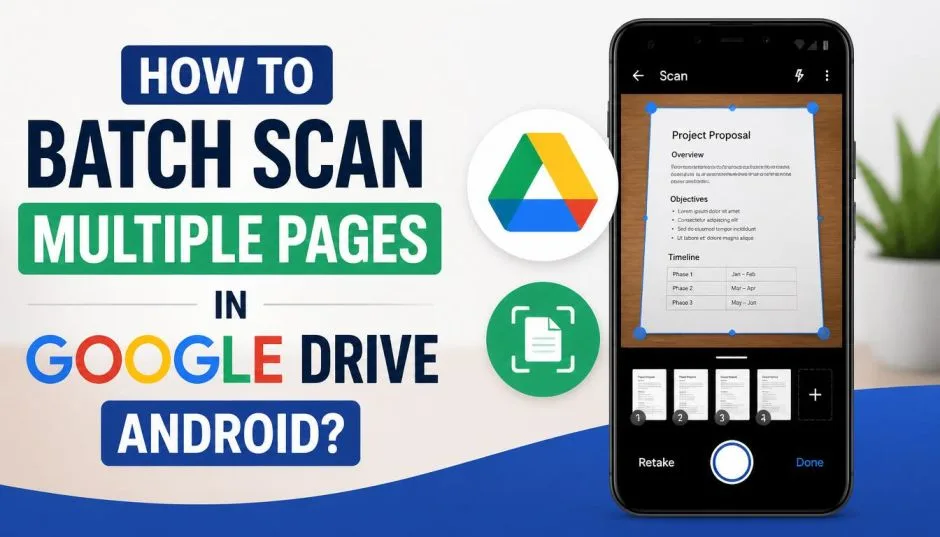
How to Batch Scan Multiple Pages in Google Drive Android?
Paperwork follows you everywhere. Receipts pile up. Contracts need signatures. Class notes multiply. You do not own a scanner. Your office printer sits twenty minutes away. The good news? Your phone handles everything.
Google Drive now includes a proper multi-page scanner. I tested the new batch scanning feature on a Pixel 8 Pro. It works. No more saving separate files for each page.
No more emailing yourself individual photos. Here is exactly how to scan multiple pages in google drive android, including the brand new AI features Google dropped in May 2026.
Wait, Google Drive Has a Scanner?
Yes. It hides inside the app you probably already use.
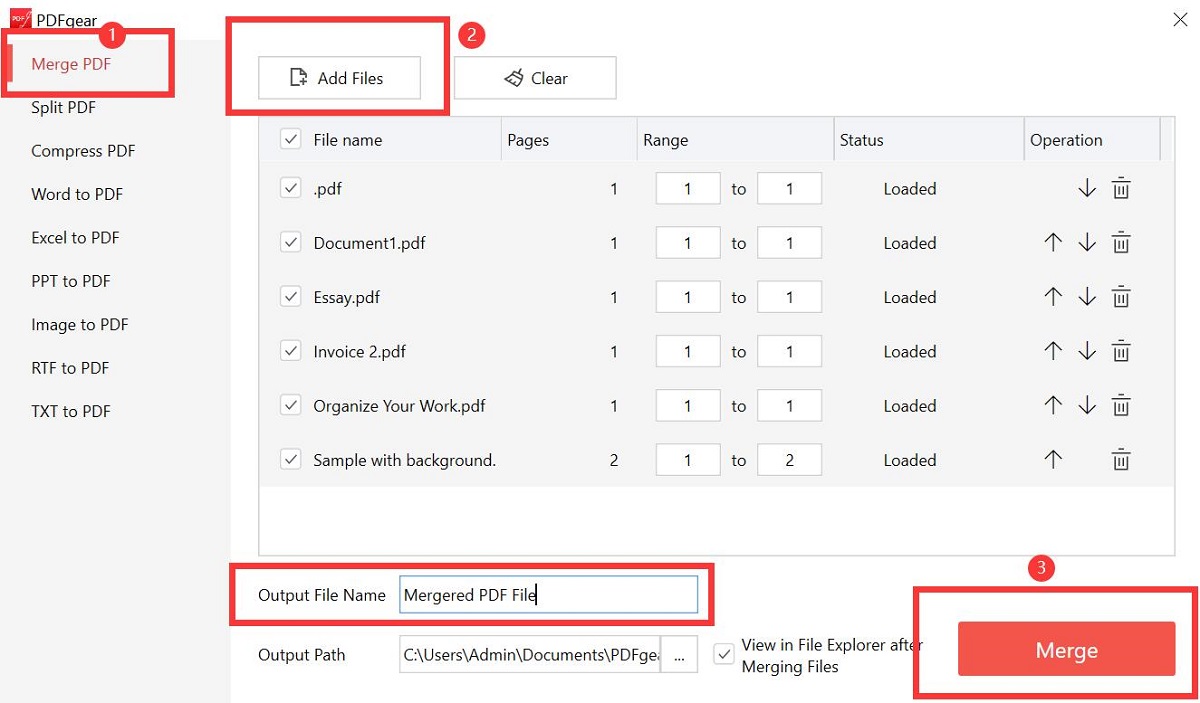
Most people open Google Drive only to find old files. They never notice the floating action button. Tap the plus icon at the bottom right. You see a few options. The camera icon labeled "Scan" is what you want.
Read Also: How to Move Shared Folder to Another Drive With Permissions?
The scanning feature has existed for years. But the old version had limits. You scanned one page. Saved it. Opened the scanner again. Scanned another page. Saved it again. Now you had three separate PDFs for a three-page document. Annoying. Inefficient. Wrong.
Google finally fixed this problem in late May 2026. The new scanner supports smart batch scanning. You flip through multiple pages. The phone captures everything in one session. The final output is a single PDF.
Step-by-Step: How to Batch Scan Multiple Pages?
Here is the exact process. I did this yesterday with a six-page rental agreement.
Step 1: Open Google Drive on your Android phone.
Step 2: Tap the plus (+) icon at the bottom right corner.
Step 3: Select "Scan" from the menu. Your camera activates. A blue outline appears around document edges when the phone detects a page.
Step 4: Position your first page. Flat surface. Good lighting. No shadows across the text.
Step 5: Capture the page. You have two options. Manual capture means you tap the shutter button each time. Auto capture detects the document and snaps the photo automatically when the page is steady and in focus. Auto capture saves time. I recommend it.
Step 6: Check the preview. The phone shows you the scanned page. Crop if needed. Apply filters if the text looks washed out.
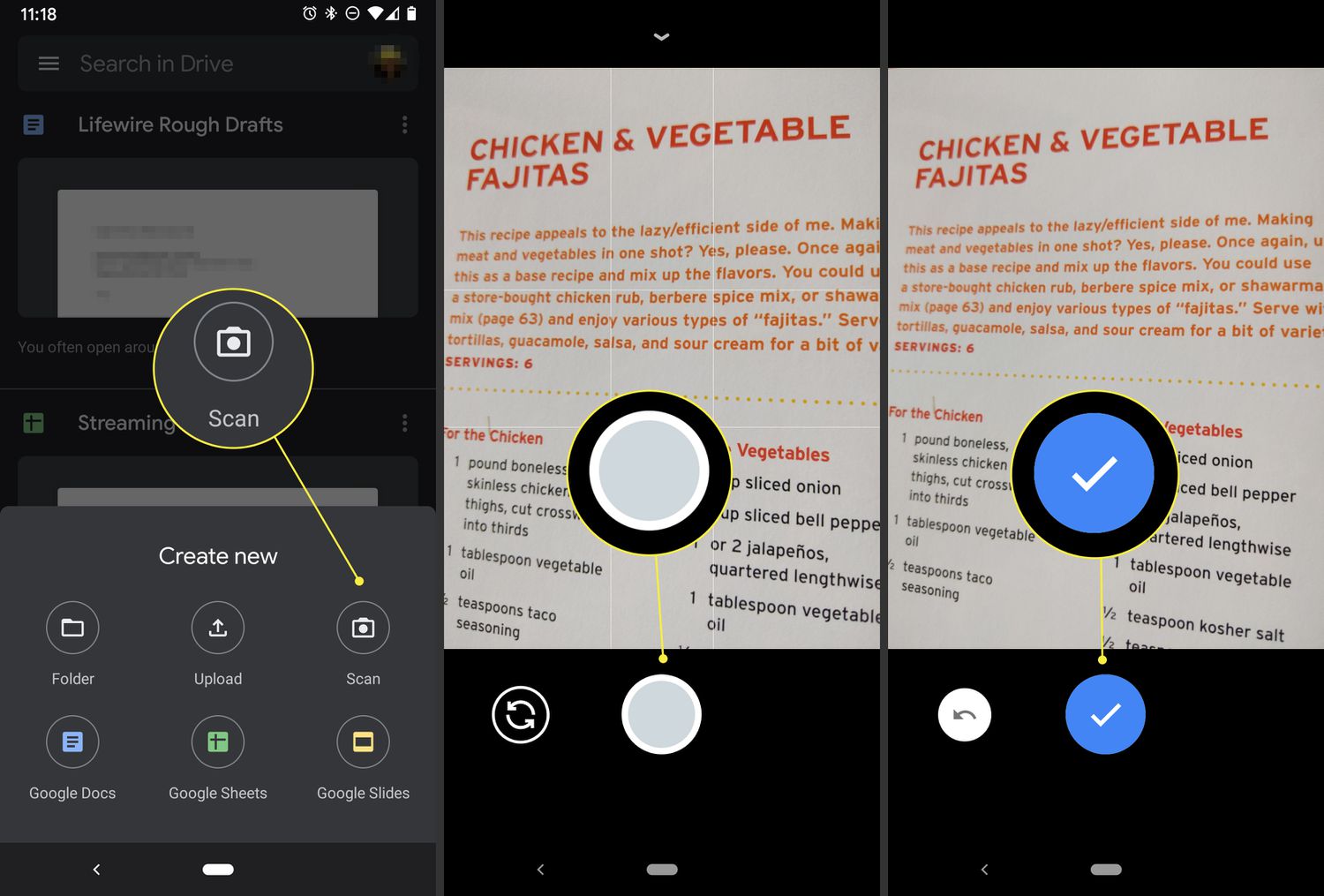
Step 7: Tap the add button (plus icon) to scan another page. Keep repeating. The phone stacks pages in order. You see thumbnail previews at the bottom of the screen.
Step 8: When all pages are scanned, tap Save.
Step 9: Name your file. Choose a Google Drive folder. Pick PDF or JPEG format. Tap Save again.
That is it. One PDF. Multiple pages. No third-party apps required.
The New Smart Batch Scanning Feature (June 2026 Update)
Google announced major upgrades on May 29, 2026. Sameer Samat, the VP of Android, posted a demo video on X. The new features are rolling out now.
Smart Batch Scanning
The old way required you to tap "add" after each page. The new way? You just keep flipping pages. The phone recognizes each new page automatically. It captures continuously. No button pressing between pages. The preview strip at the bottom updates in real time.
You Must Also Like:
I tested this on a Samsung Galaxy S24 Ultra. It worked seamlessly for the first five pages. On page six, the phone captured a blank page because my hand covered part of the document. Easy fix. I deleted that page before saving.
Auto-Best Frame
Your hands shake. We all shake. The new scanner captures multiple frames while you hold the phone steady. Then it picks the sharpest image automatically. Blurry photos get replaced without you doing anything.
This saved me once already. I scanned a faded receipt while walking to my car. The phone chose a clear frame even though I was moving.
Duplicate Detection
The scanner identifies repeated pages. If you accidentally scan the same page twice, the system flags it. You can remove duplicates before saving. No more flipping through a 20-page PDF wondering why page 4 and page 12 look identical.
Offline Processing
All scanning happens directly on your phone. No upload to Google servers during the scan. Your sensitive documents never leave your device.
Two benefits here. First, privacy. Medical records, tax forms, and legal contracts stay local. Second, speed. No waiting for cloud uploads between pages. The processing is instant.
Important: Check Your Phone's RAM First
Here is the catch.
The new batch scanning features require at least 8GB of RAM.
Why? The AI processing runs locally on your device. Auto-Best Frame and Duplicate Detection need memory to work. Older budget phones with 4GB or 6GB RAM cannot run the new scanner. Those devices default to the older version.
How to check your RAM:
-
Go to Settings > About Phone
-
Look for "Memory" or "RAM"
-
Some manufacturers hide this in "Developer Options"
If your phone has less than 8GB RAM, you can still scan multiple pages. You just do not get the automatic batch features. You manually tap "add" between pages. The old way works fine. It just takes a few extra seconds.
What If Google Drive Scanner Does Not Work?
Three common problems. Three quick fixes.
Problem 1: The scan button is missing. Your Google Drive app is outdated. Update through the Play Store. The scanner icon only appears in version 2.24 or newer.
Problem 2: Auto-capture keeps failing. Poor lighting or low contrast between the paper and the surface. Place the document on a dark surface if the paper is white. Or a white surface if the paper has dark borders. The edge detection needs contrast to work.
Problem 3: The app crashes when scanning multiple pages. Your phone likely has low storage or low RAM. Clear the Google Drive cache. Settings > Apps > Google Drive > Storage > Clear Cache. Then restart your phone.
Alternative: Scan Documents to Email on Phone
Sometimes you do not want to save to Drive. You just need to scan documents to email on phone quickly. No storage. No folder organization. Just scan and send.
Google Drive handles this too.
After scanning your pages (using the batch method above), do not tap Save. Instead, tap the Share icon. Choose your email app. The PDF attaches automatically. Enter the recipient address. Send. The file never saves to your Drive unless you want it to.
This takes ten seconds longer than saving first. But it avoids cluttering your cloud storage with one-time documents.
Third-Party Apps Worth Considering
Google Drive works for most people. But dedicated scanning apps offer more control.
Notebloc Scanner (free with ads, paid upgrade available). This app specializes in batch scanning. It detects page corners aggressively. It removes shadows completely. The free version allows unlimited scans. The paid version removes watermarks and adds OCR (text recognition).
Microsoft Lens (free). Excellent perspective correction. Scans whiteboards and business cards. Direct export to Google Drive, OneDrive, or email.
Adobe Scan (free with Adobe account). Best OCR in the business. Converts scanned text into searchable PDFs. Free for basic use.
When do you need these? When your documents have weird angles. When you scan books (curved pages near the spine). When you need searchable text. Google Drive handles flat documents well. Curved pages? Use Notebloc or Lens.
How to Scan Documents with Phone Camera?
Here is a trick most people miss.
Your Android phone camera has a built-in document scanner. No apps required. Open the default camera app. Look for a "scan" or "document" mode. On Samsung phones, tap the settings gear, then "Scene optimizer" and enable "Scan documents." On Pixels, the feature appears as "Document" in the camera modes list.
Point the camera at your document. A yellow box appears around the edges. The phone captures and straightens the page automatically.
Downside? No native multi-page assembly. You end up with separate photos in your gallery. You then need another app to combine them into one PDF.
The Google Drive method is cleaner for multi-page documents.
Practical Tips from Real Use
Lighting matters more than you think. Direct overhead light creates shadows. Place the document near a window. Use diffuse daylight. If scanning at night, use two light sources from different angles to reduce shadows.
Flat surface is not optional. I tried scanning on my lap. Every page came out crooked. Use a table or desk.
Clean your camera lens. Obvious advice. Ignored by most people. A smudged lens creates blurry scans. Wipe it with your shirt before starting.
Scan in grayscale for text. Color files are larger. Grayscale PDFs are smaller and load faster. Google Drive lets you apply a grayscale filter before saving.
Name files immediately. Future you will thank you. "Scan_20260609.pdf" means nothing. "Rental_Agreement_Smith_signed.pdf" means everything.
Scanning a 15-Page Contract
I tested the batch scanner on a full contract. Legal size paper. Single-sided. Fifteen pages.
Setup time: One minute (cleaned lens, found flat surface)
Scanning time: Two minutes (auto-capture on, flipped pages continuously)
Processing: Fifteen seconds (phone combined pages, applied auto-enhance)
Final file size: 4.2 MB for grayscale PDF
No errors. No missing pages. No duplicate pages. One try. One PDF.
The old method would have required fifteen separate captures, fifteen saves, then a separate PDF merger app. Total time: at least fifteen minutes. The batch scanner saved me twelve minutes on one document.
What Google Drive Still Does Not Do?
Honest limitations. No hype.
No OCR. Google Drive scans images of text. It does not make text searchable. You cannot search for a word inside a scanned PDF. For that, use Adobe Scan or Google Keep.
No book scanning. The scanner assumes flat pages. Books with curved spines produce warped scans.
No automatic naming. The app suggests generic names like "Scan_001.pdf." You rename each file manually.
No cloud backup during scan. Remember, processing is local. The file only uploads to Drive when you tap Save. If your phone dies mid-scan, you lose progress.
Who Should Use Google Drive Scanning?
Best for: People who already use Google Drive. Students scanning handouts. Freelancers capturing signed contracts. Anyone needing quick, simple multi-page PDFs without installing extra apps.
Not best for: People scanning books or curved pages. Anyone needing searchable text. Users with phones under 8GB RAM (use the old method or a third-party app).
The Final Thoughts
Learning to scan multiple pages in google drive android takes two minutes. The feature lives inside an app you already have. The new batch scanning update (May 2026) finally makes multi-page documents easy. Just tap the plus icon, select Scan, flip through your pages, and save one PDF. No third-party apps. No manual combining. No frustration.
Check your phone's RAM before getting excited. 8GB or more gets the new AI features. Less than that? The old method still works fine. Either way, you never need a physical scanner again.
Open Google Drive right now. Scan something small. A receipt. A single page. Test the auto-capture. See how the blue outline tracks your document. Once you see how fast it works, you will scan everything. Your desk will thank you.